

Our Messaging tool is available for all Aristides Atelier students. This tool allows you to send a message to your class or an individual student. Our hope is that you use this tool to connect with other students in Terracotta.
To learn how to use our Messaging tool, keep reading below or click HERE to view a video tutorial.
Please Note: The Messaging tool is not used as a support tool. If you need help or have questions for Terracotta, please review our knowledge-base of support articles or email us.
Whenever you are logged in and on the Terracotta homepage or your Aristides Atelier main page, you will see the messaging tool in the bottom right hand corner of your screen.
Please Note: You will not see the messaging tool when inside a lesson's virtual studio.

To open this tool, click on the word Messaging.
All of your previous conversations will appear, as shown below.
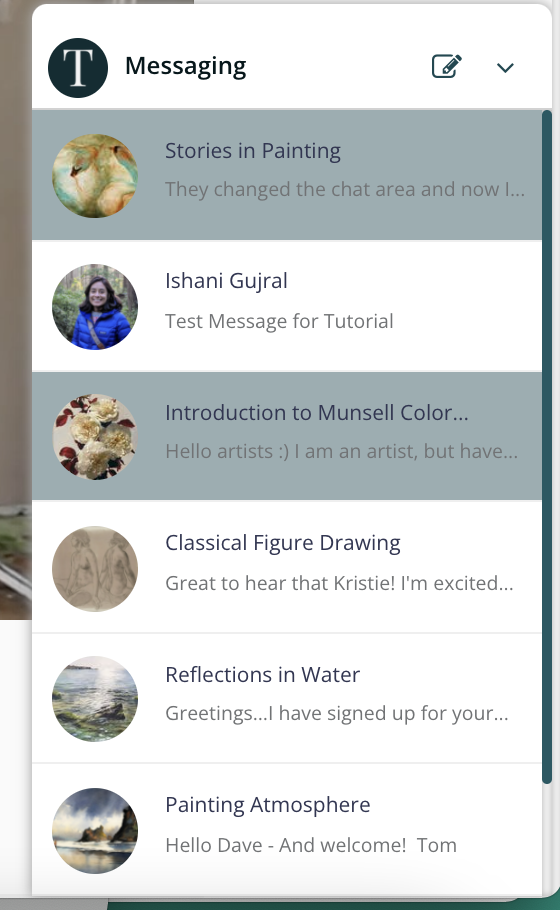
To start a new conversation, click on the paper and pencil icon (top-right corner).
Once you have clicked the paper and pencil icon, this box will appear.
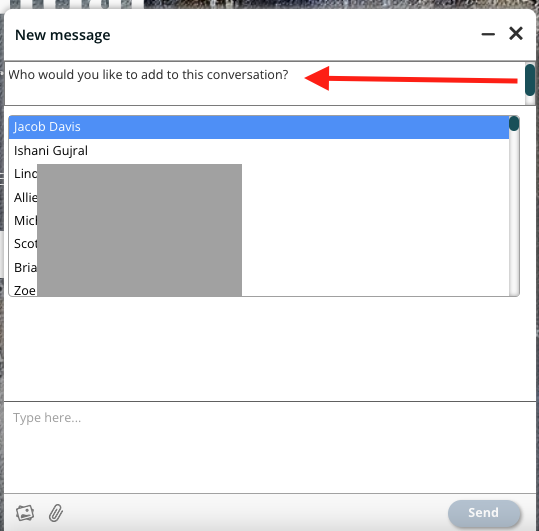
You will first need to add someone to the conversation. To do this, click on the box at the top that has the words, "Who would you like to add...". Please Note: It may take a few seconds for the "Who would you like to add" section to load.
A dropdown menu will appear. You can either type the name of the person you would like to message or scroll to find them using the dropdown option.
Then, type your message at the bottom where it says, Type here.... You can also add an image or attachment to the message, using the icons in the lower left corner.
Once you have completed your message, send your message by clicking on the send button in the lower right corner.