

TO VIEW & JOIN UPCOMING EVENTS
1. From the program homepage, go to the Events tab.

2. Verify your ticket information:
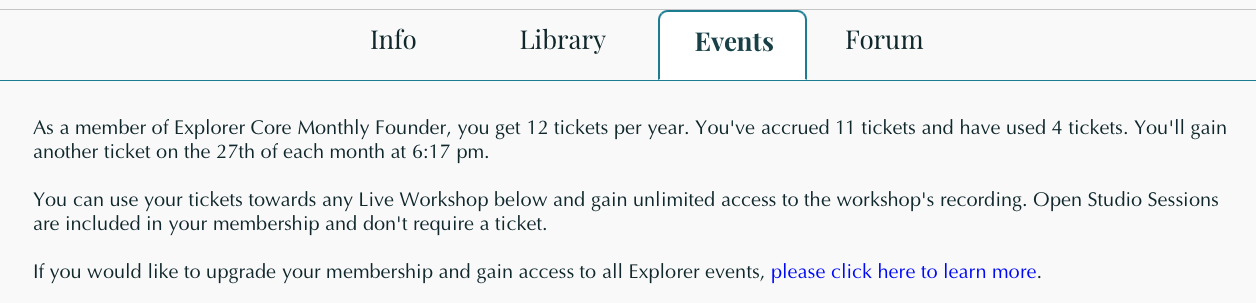
You will see any information pertaining to your ticket here, including how many you have accrued and how many you have used.
3. Select your view and view live events:
You have two different viewing options to join Upcoming Live Events - Calendar View & List View (tab title: Upcoming). Choose your view using the tabs on the left.
**The time for events is automatically displayed in your current timezone.**
Calendar View
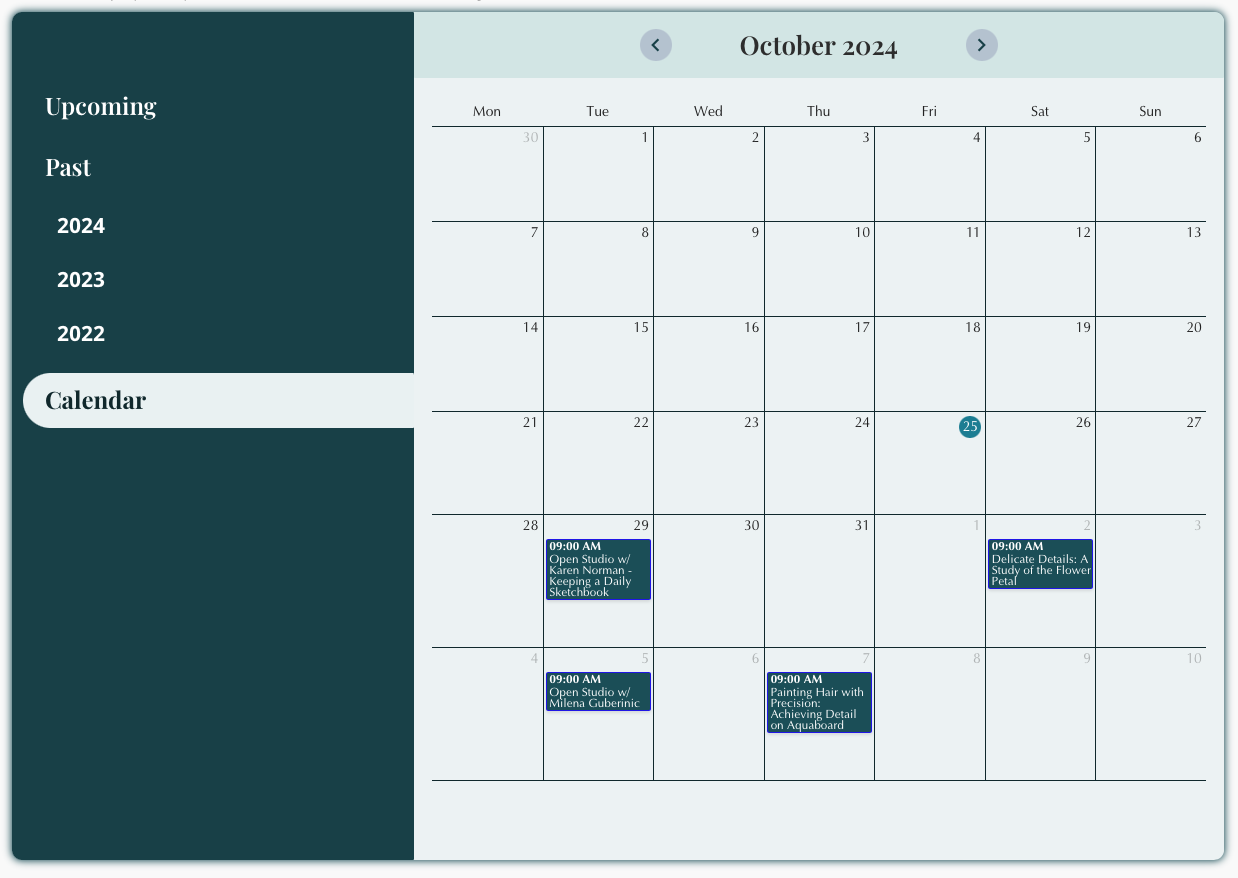
When you click on an event in the calendar, the event will appear on the lefthand side of the calendar (see below).
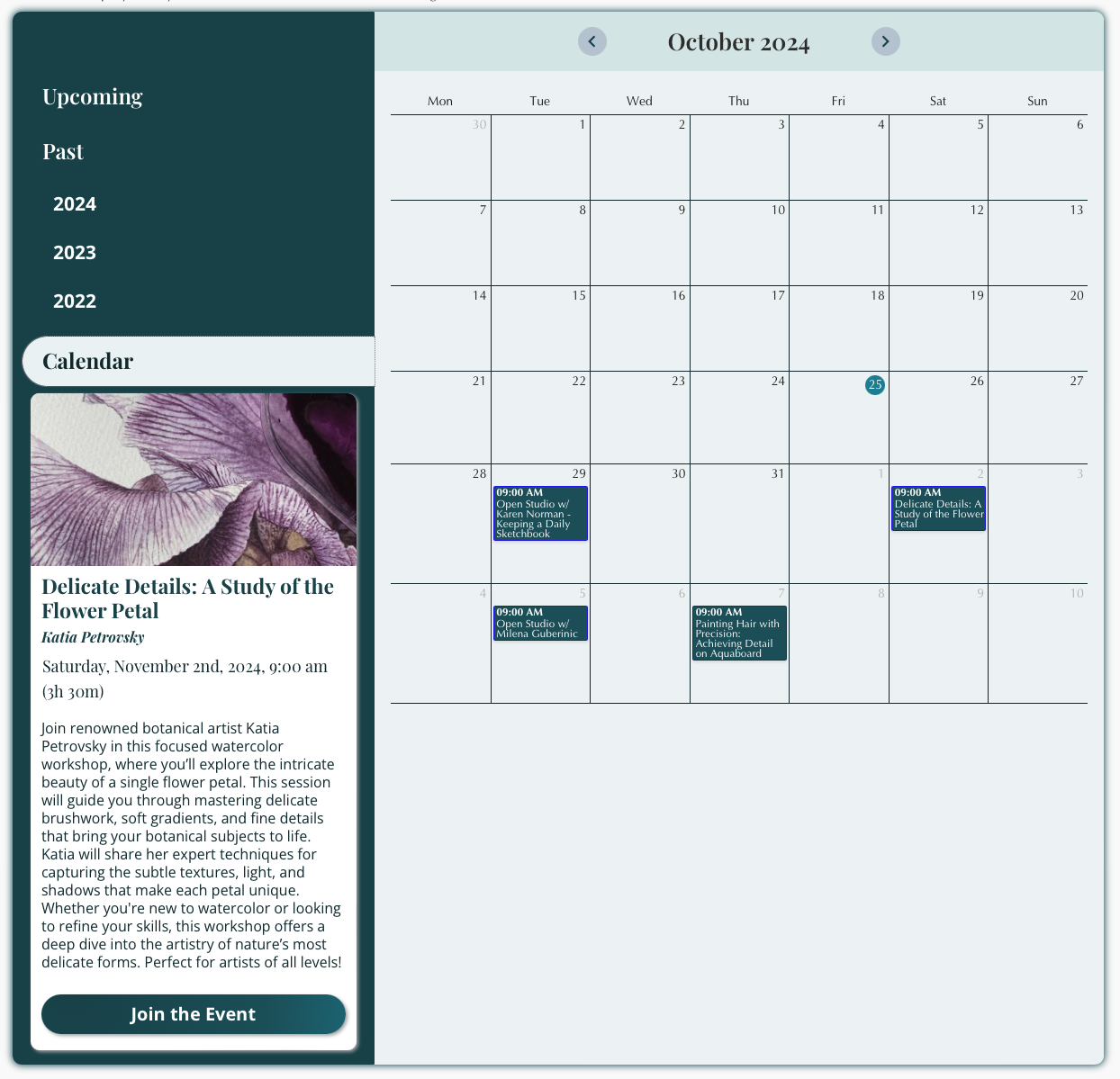
List View
From the tabs on the left, click Upcoming. Scroll to find the event you would like to join.

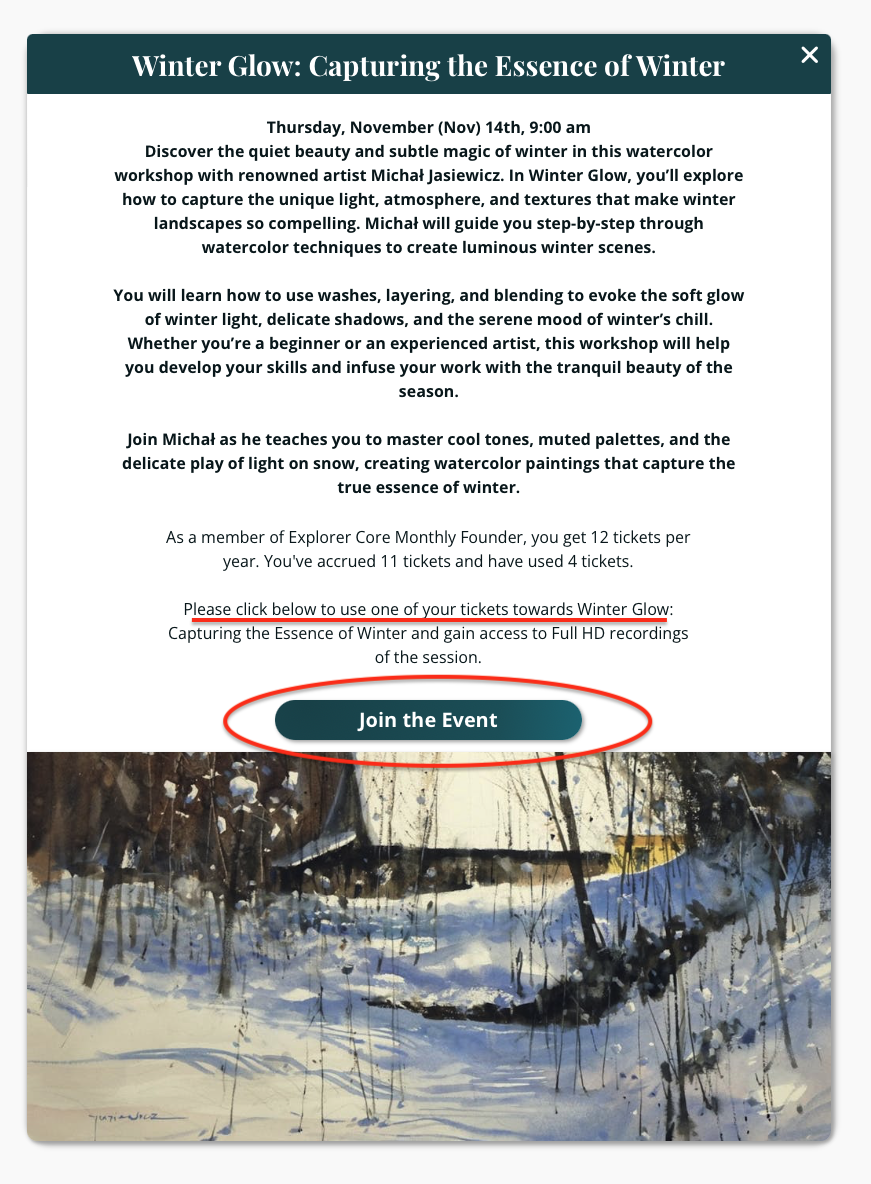
4. Click "Join the Event" for the event you wish to join.
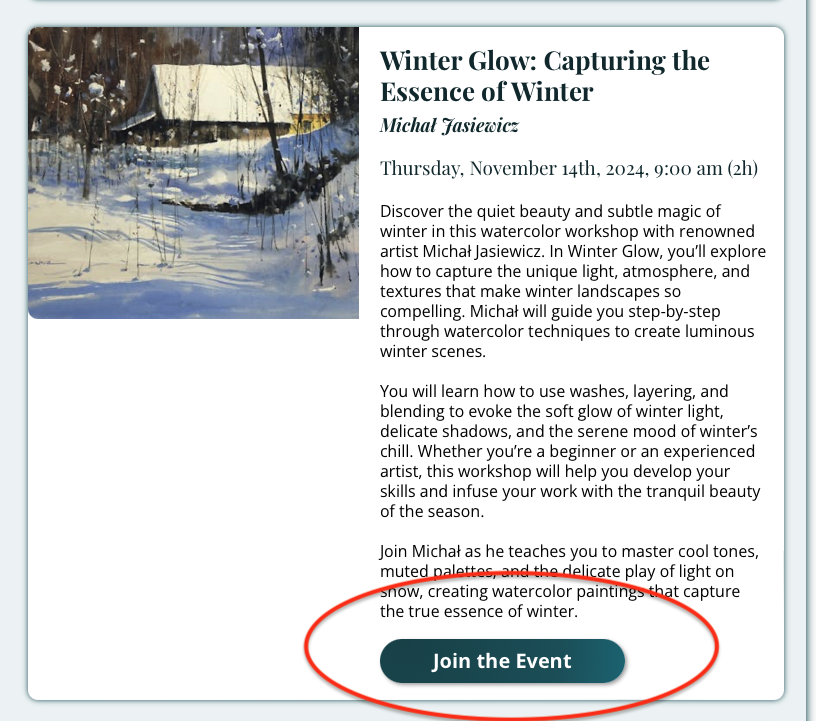
To use your ticket, confirm by clicking "Join the Event" again. ***Please note, if you do not have any ticket's available it will instead ask if you'd like to upgrade to Guided Study.***
4. Once you enter the studio, click "Join via Zoom" at the time of the event.