

Guided Study Membership
Students with a Guided Study membership in the program have the opportunity to have their artwork critiqued by one of our Master Faculty during the monthly live critique sessions and receive up to two video critiques per month completed by the program instructor, Dani.
The offline video critiques are video recordings of the program instructor providing feedback on your work and are available to you for life. You can submit projects at any time.
To submit a project for critique, please follow the steps below:
To upload your artwork on Terracotta, you will need to have a picture of your artwork accessible on your device: phone, tablet, or computer.
You are able to submit your work in any of the program Galleries. That includes the galleries in all of the program lessons and events. Your submission does not have to be specific to the topic of that lesson or event.
1. Once you are in one of the program's studios (lesson or event), select the Gallery tab.

2. Scroll down to the Student Gallery, and click on the Upload button.

3. The screen shown below will appear.
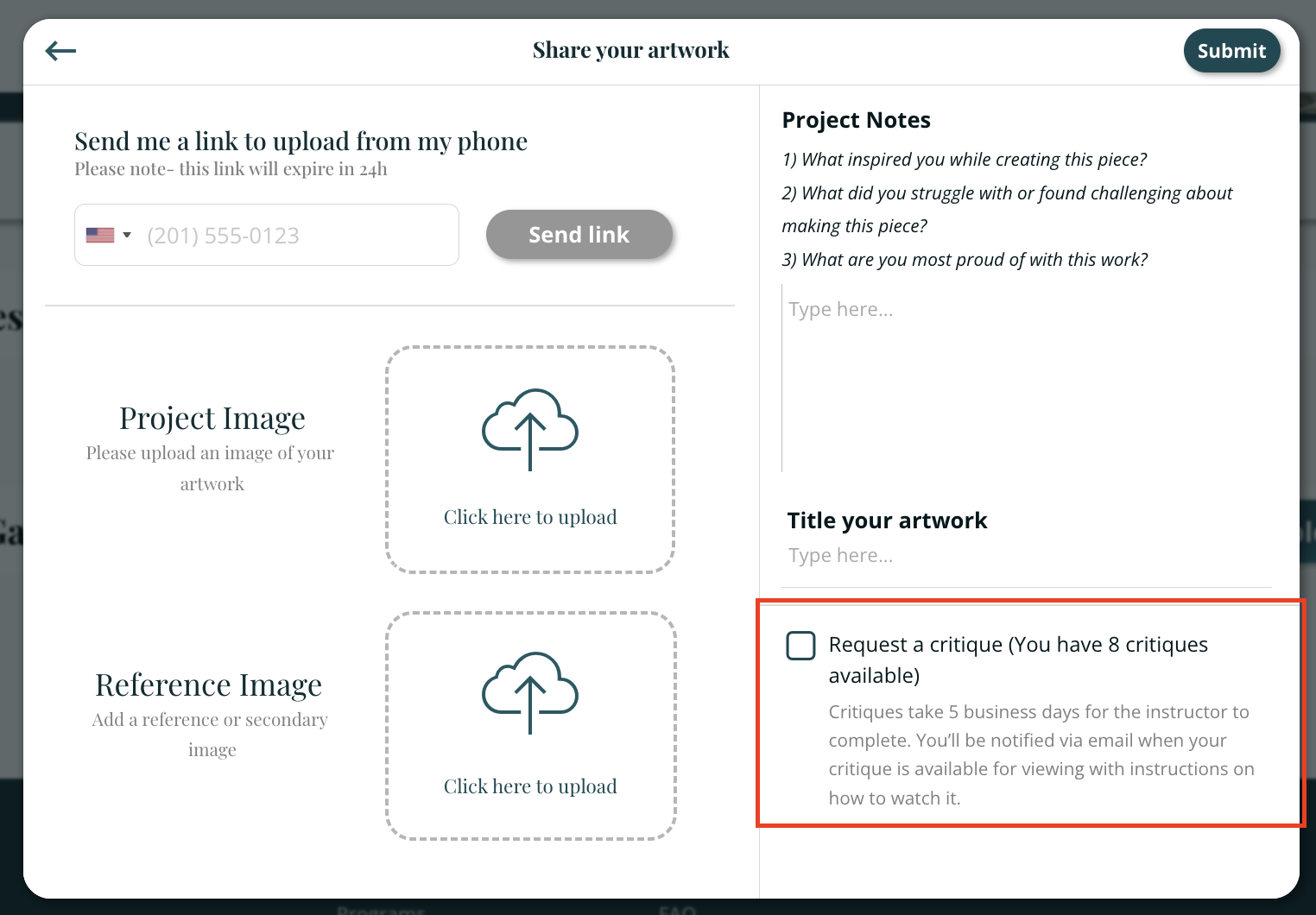
Upload an image of your artwork and a reference image by clicking inside the dashed rectangles. Once your images are uploaded, check the box for "Request a critique."
You can also title your work and share project notes (any additional information for the instructor, such as more context about your goal for the artwork, your inspiration, challenges you faced, and questions you have). Anything you share will help the program instructor give you more thorough feedback.
5. When you are done, click on the Submit button.

When you request a critique, the critique icon will be shown underneath your image (a yellow outline of a star with the letter c inside).

Once the critique is complete, the critique icon will be filled in (as shown below).

You will be notified via email when your work has been critiqued with a link to the critique.
To view your critiques:
You have lifetime access to viewing your critiques. You can view them from your portfolio.



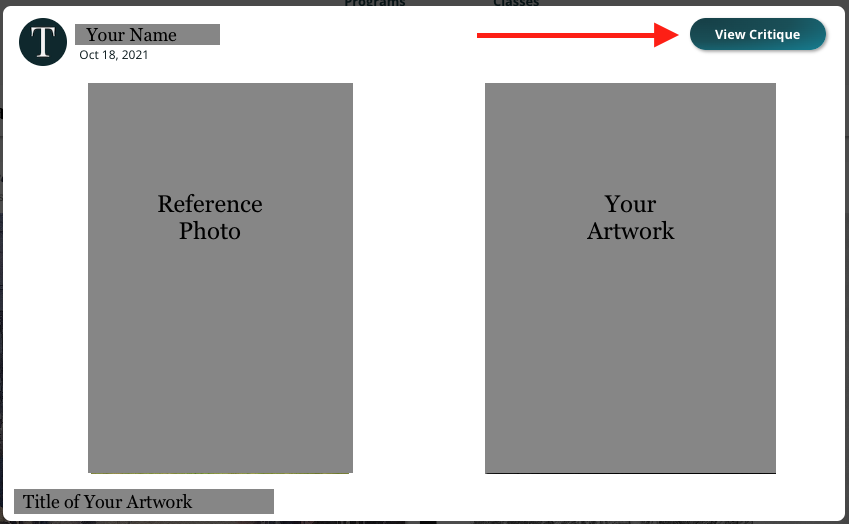
Click on the image to open up the "upload," and then click on, View Critique. An example of an "upload" is shown below.
For a brief video on submitting Explorer Critiques, click here.