

First, you wait until you are brought into the class by the moderator. Once you are successfully in the Zoom meeting, toward the bottom you should see the the option More.
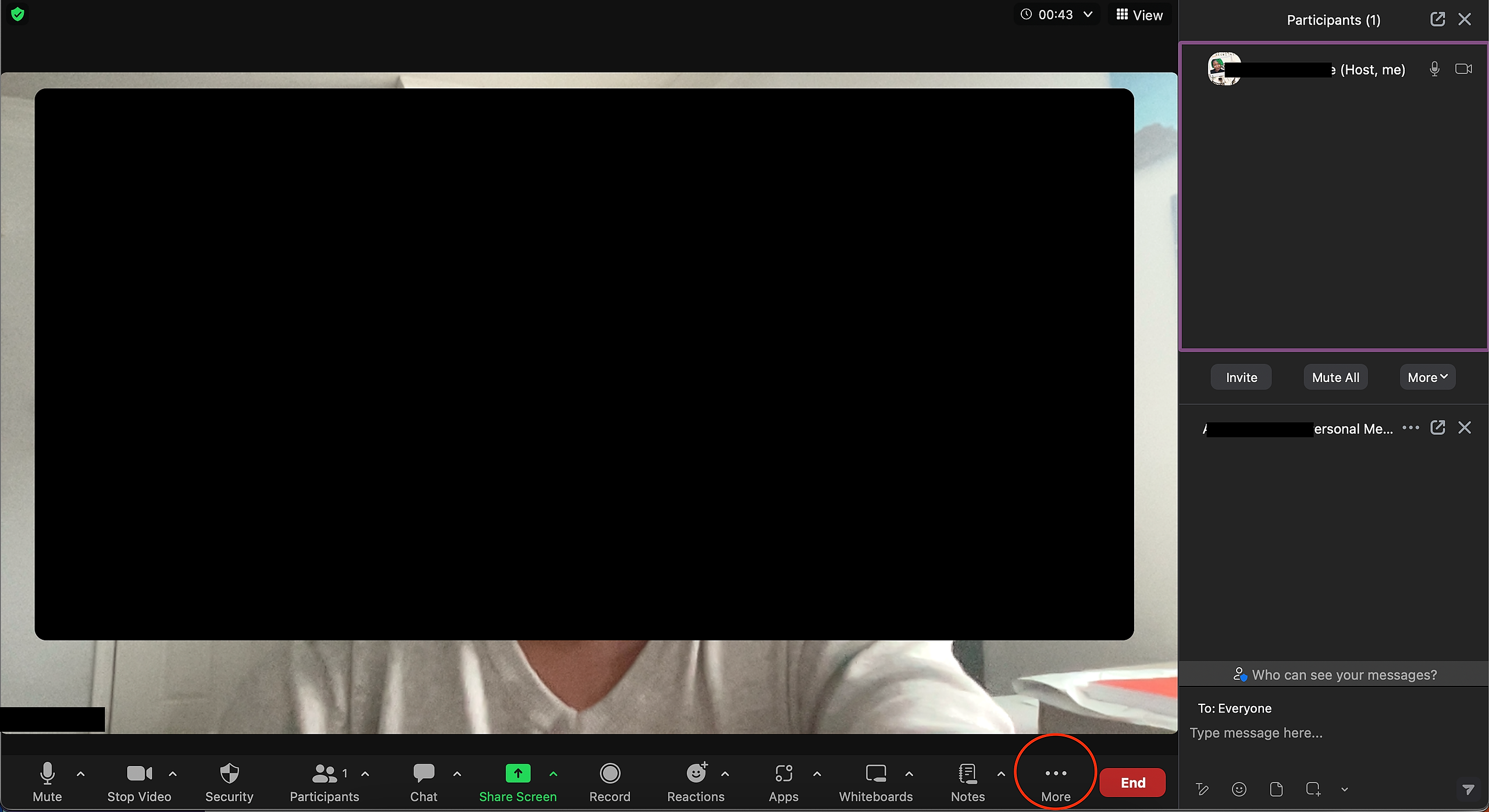
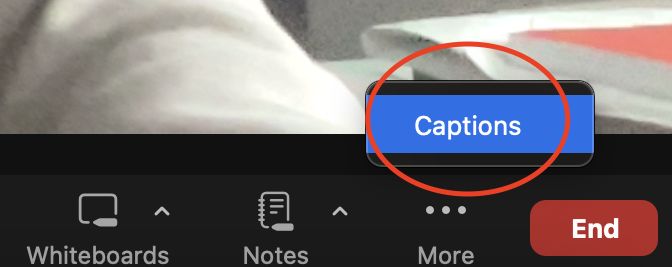
After you click more, the option Caption will show. You will want to click this.
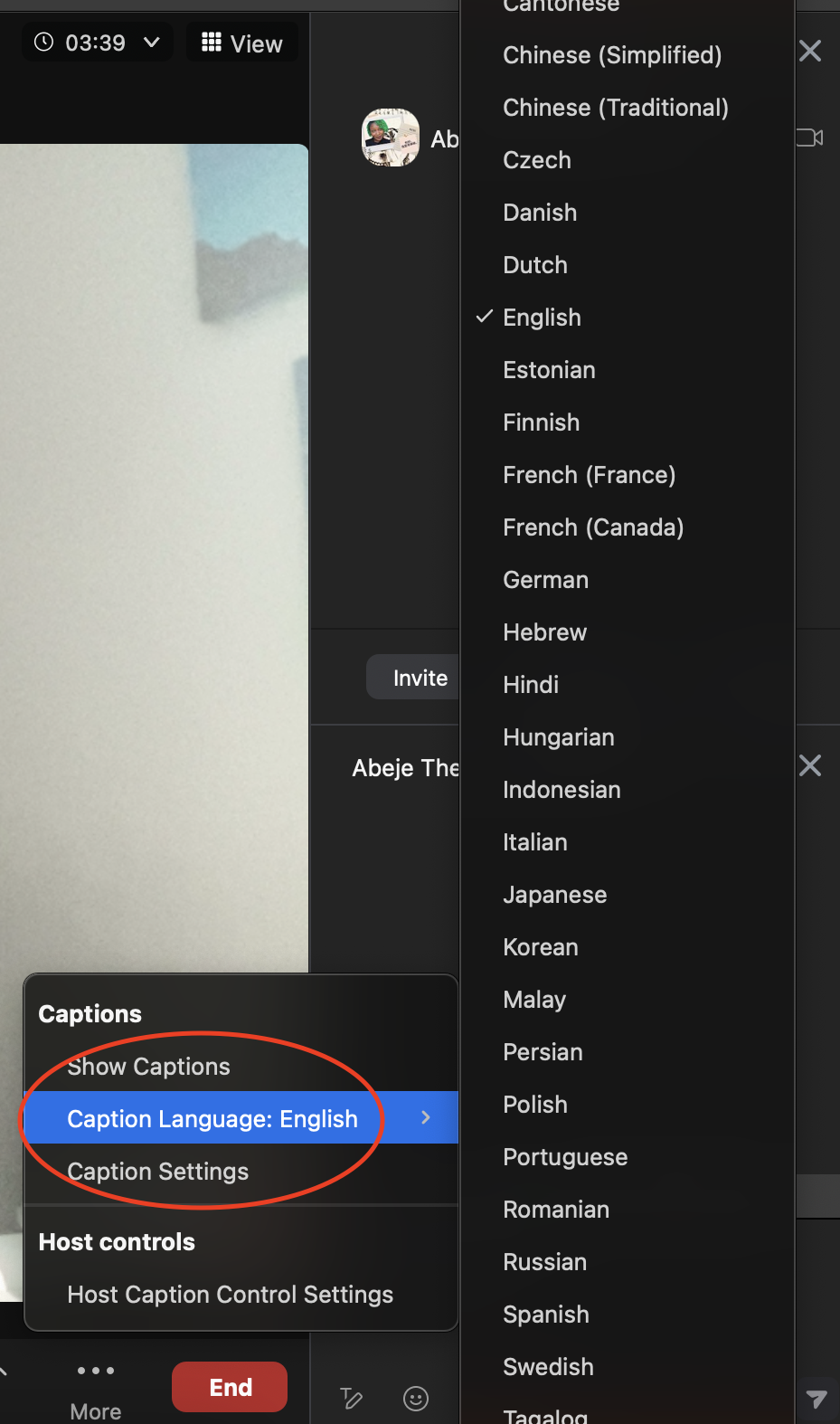
You will see the option to simply Show Captions, Caption Language, and Caption Settings. Clicking Show Captions turns them on.
With Caption Language, you have 34 different options to choose from.
In the Caption Settings, you have the option to change font size, caption color and translation color.
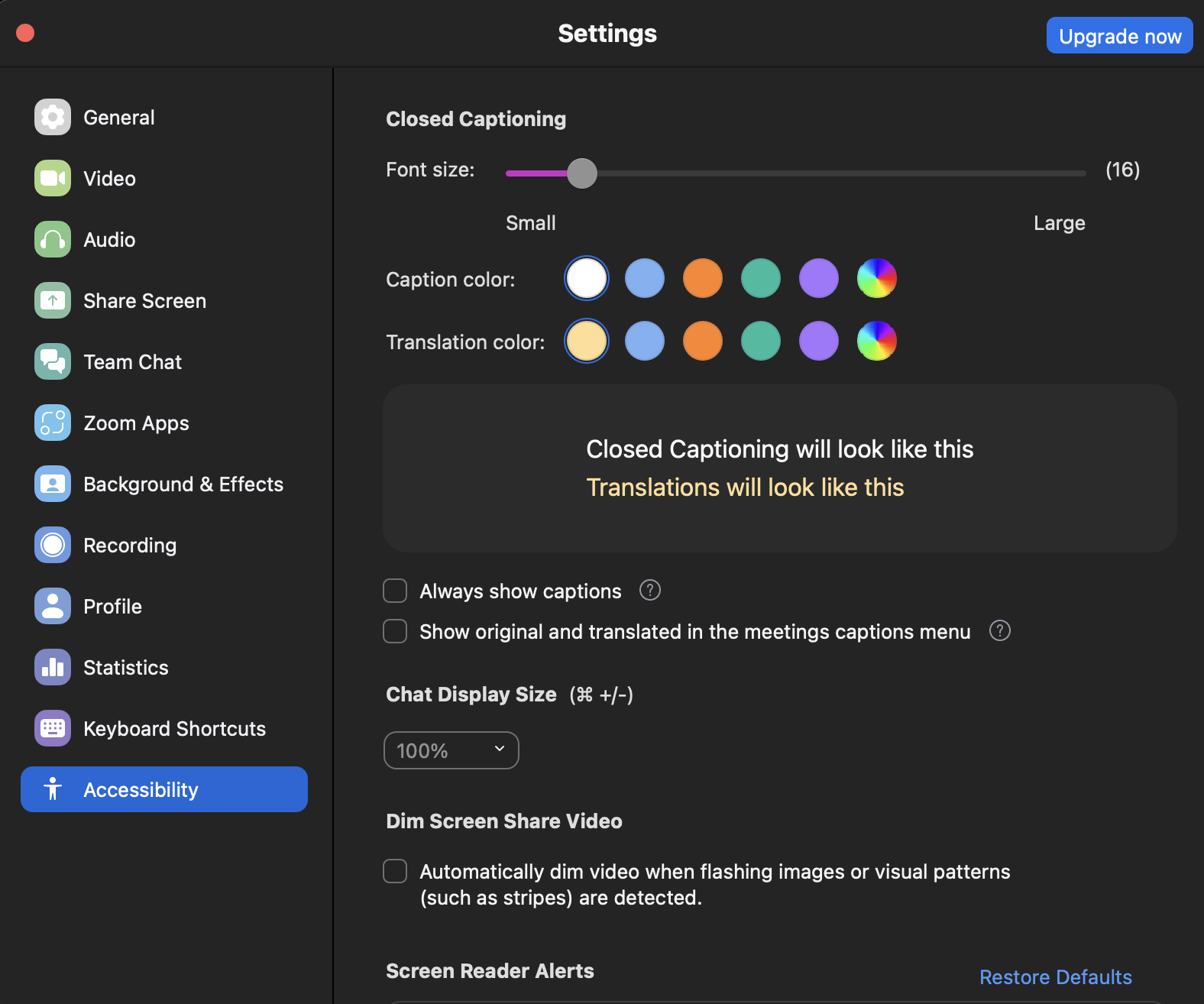
After you choose your settings, you can simply exit out of the settings and return to the viewing the class only.