

To receive instructor feedback on your work, please follow the steps listed below to ensure your work is uploaded to the correct location.
Where to upload your work:
There are two locations to share your work to receive instructor feedback.
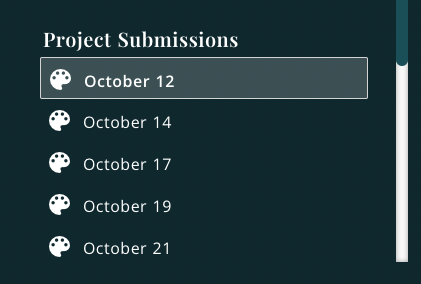
Option #1. In the Curriculum > Scroll down to the Project Submissions section.
Find the date of the session.
Then, click on Share your artwork.
Option #2. In the Gallery > Scroll down to the Student Gallery. Click on Upload and then choose the date of the session.

How to upload your work:
To upload your artwork on Terracotta, you will need to have a picture of your artwork accessible on your device. You can upload using your phone, tablet, or computer.
Following the steps listed above, the screen shown below will appear. Upload an image of your artwork and a reference image by clicking inside the dashed rectangles.
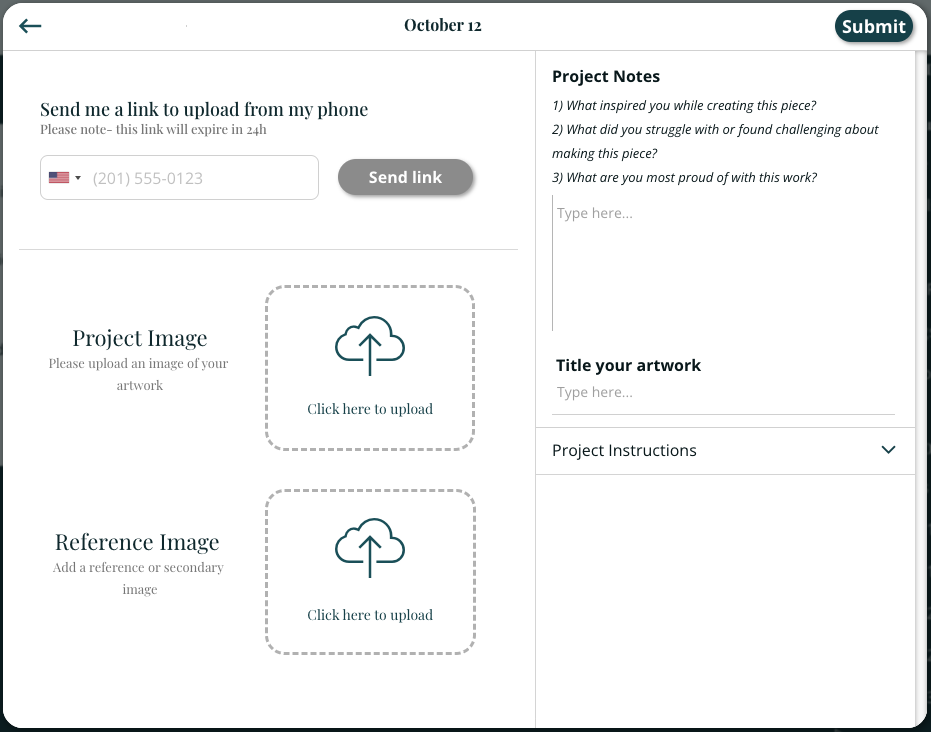
You can then select any photo or image on your device.
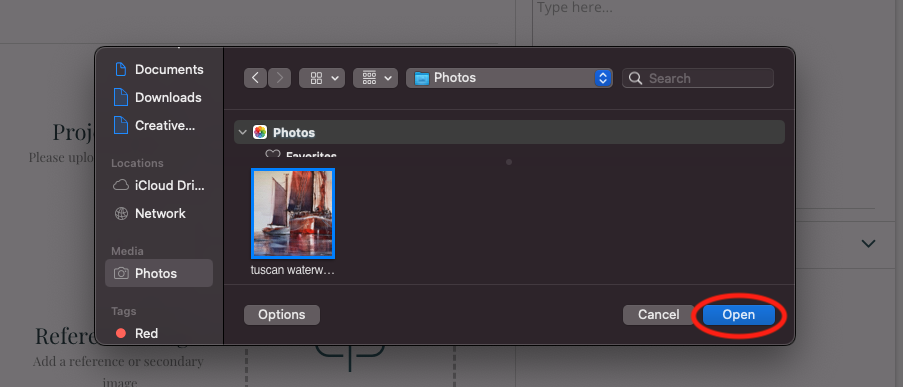
You can add it by "double clicking" on the image or click on the image and then click "open" as shown below.
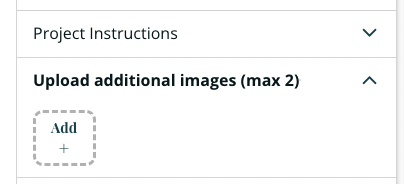
After you upload photos for both your project image and reference image, a section will appear that will allow you to upload two additional images (optional).
Title your artwork and share any project notes. When you are done, click on the Submit button.
All work that is uploaded from the lesson, either from the Curriculum or the Gallery, is viewable by the instructors and students in the program. You can "like" and comment on any artwork in the Gallery.