

To share your artwork on Terracotta, you will need to have a picture of your artwork accessible on your device. You can upload using your phone, tablet, or computer.
1. Once you are in the class' Virtual Studio (login > Menu > My Classes > Enter Studio), select the Gallery tab.

2. Scroll down to the Student Gallery, and click on the Upload button.

3. This screen will appear. Click anywhere inside the dashed rectangles to upload an image of your artwork and a reference image.
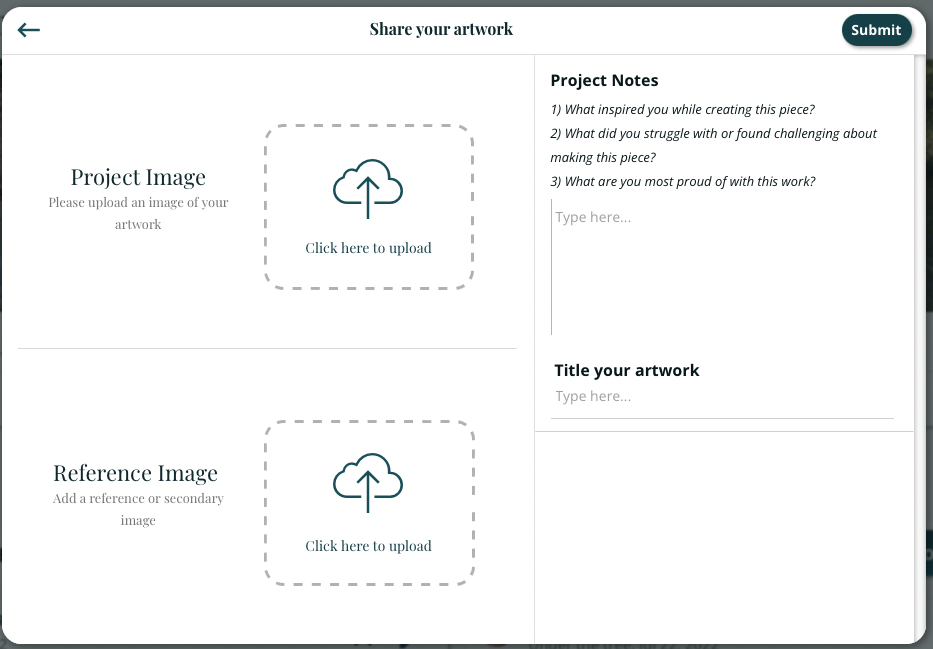
4. You can also title your work and share project notes (any additional information for the instructor, such as more context about your goal for the artwork, your inspiration, challenges you faced, and questions you have). Anything you share will help your instructor give you more thorough feedback.
5. When you are done, click on the Submit button.

Your artwork (and additional information) will now appear in the Student Gallery!
** Due to the design of the Gallery, images may not always appear full-sized. To view images full-sized, click on an image within the Gallery. This will pull up the "upload." Then, click on one of the images in the upload to view it full-sized.
All work that is uploaded in the Gallery is viewable by other students in the program. Students can "like" and comment on any artwork in the Gallery.
To edit or delete an Upload:
After you have added an image to the Gallery, you are able to edit or delete the upload. To do so, use the icons located at the top right corner of the image upload.
To view all the artwork that you've submitted on Terracotta:


All your images will appear here!
