
1. Log In: Log into your account on our platform: https://terracotta.art/

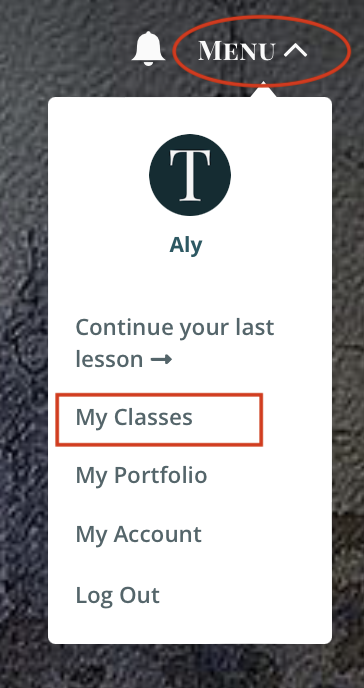
2. Go to Your Class: Click Menu and select "My Classes". Enter the virtual studio.

3. Find the Gallery: Click on the "Gallery" tab. Scroll down past the Instructor Gallery to the Student Gallery. Click the "Upload" button.


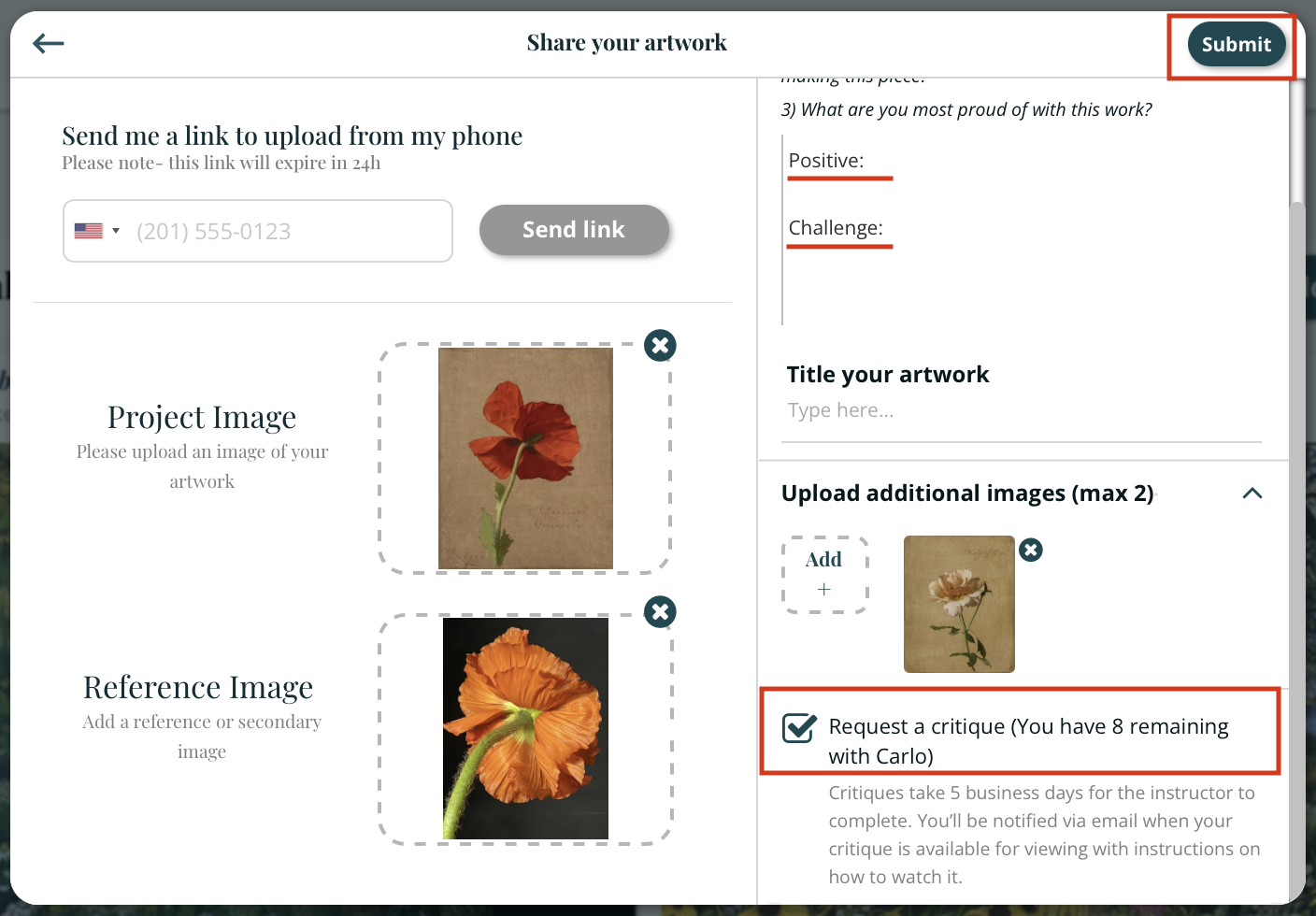
4. Upload Your Images: In the pop-up window, either enter your phone number to upload via your phone or click inside the dotted lines to upload from your computer (up to four images). After uploading two images, click "Add Additional Images" to upload more.
5. Edit Images: Click on an image to change it or click the "x" to delete it.
6. Add Details: Add a title, one positive aspect, and one challenge you faced.
7. Mark for Critique: Check the box that says "Request a Critique". This notifies the instructor and ensures you are emailed when your critique is ready. Please note that each class may differ for when to expect your critique from instructors. Please email us at hello@terracotta.art if you have any questions.
8. Submit: Click "Submit" to complete your submission.
Critique Etiquette and More Information
1. Be Respectful: Approach feedback with an open mind and a positive attitude. Remember that critiques are meant to help you grow as an artist.
2. Be Specific: When asking questions or requesting further feedback, be clear and specific about what you need help with.
3. Engage with others: Offer encouragement and constructive feedback to your peers in the gallery. Focus on providing helpful suggestions rather than criticism.
4. Accidental Critique Marking: If you accidentally mark something for critique and need help fixing it, please email hello@terracotta.art for assistance.
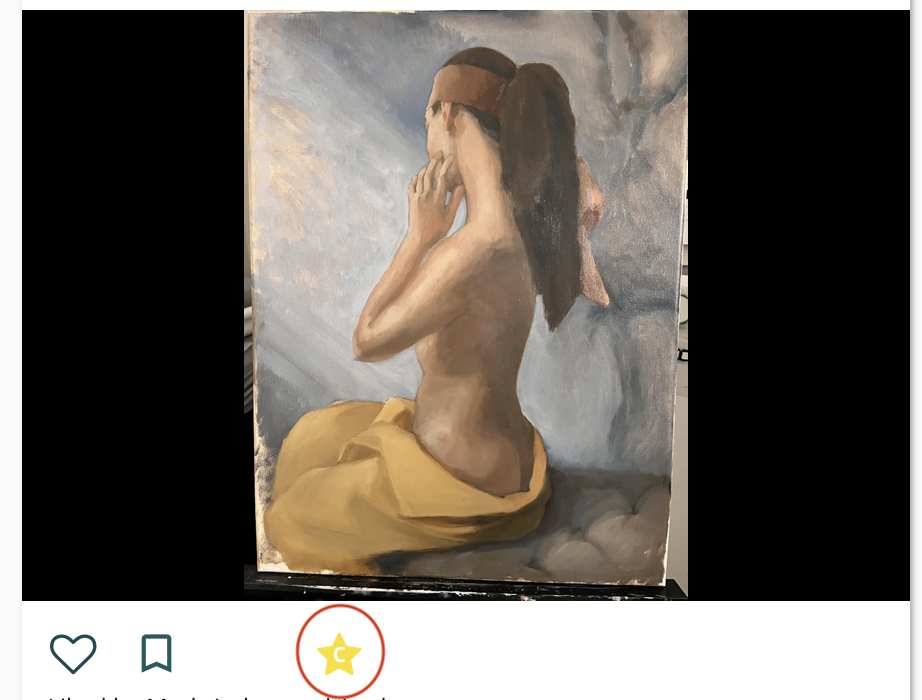
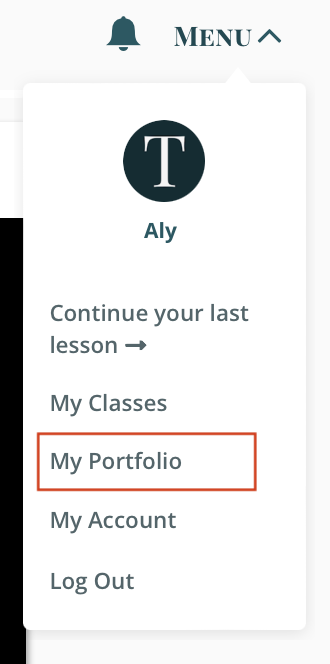
5. Viewing Your Own Critiques: You can find anything you've marked for critique on your My Portfolio page. The My Critiques section at the top will list all your critique submissions, while the My Portfolio section at the bottom will show all images you've uploaded to any gallery on Terracotta's platform. A critique with a hollow yellow star is awaiting instructor feedback, a critique with a solid yellow star has been completed.
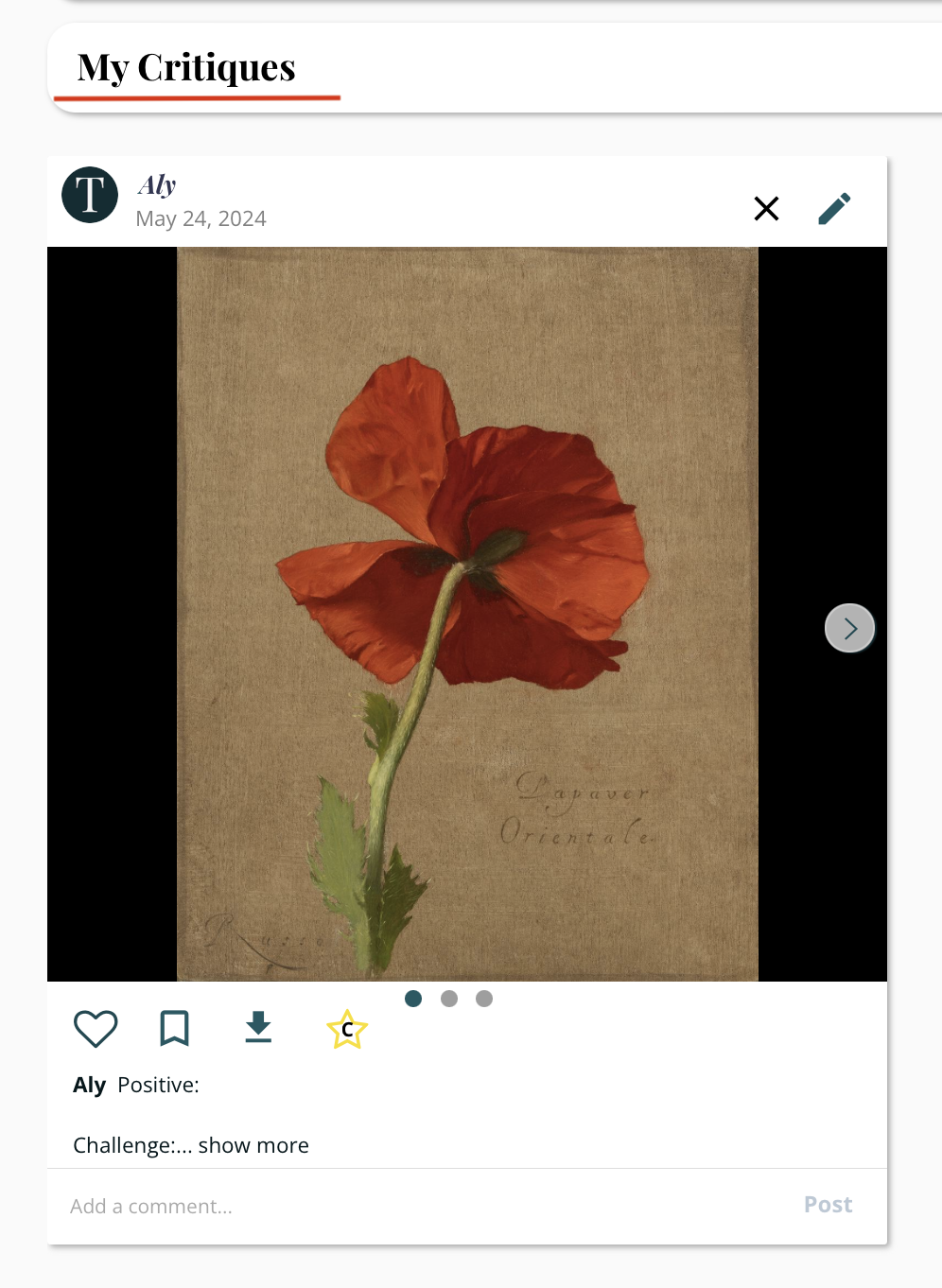
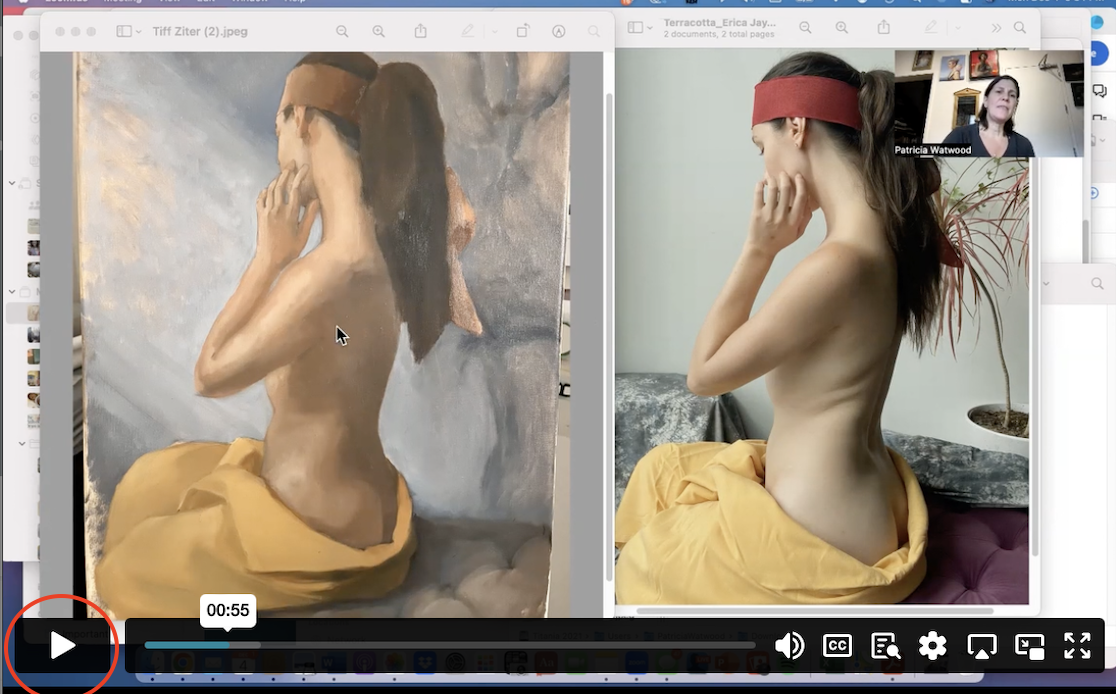
6. Viewing Classmates' Critiques: Once the instructor has completed a critique, a solid yellow star will appear on the post in the gallery. Anyone can view the critique by clicking on the post and selecting "View Critique". You can add comments and encouragement under other students' work in the gallery, following the etiquette tips of being positive and giving constructive feedback.