

For a video tutorial of the program, click here.
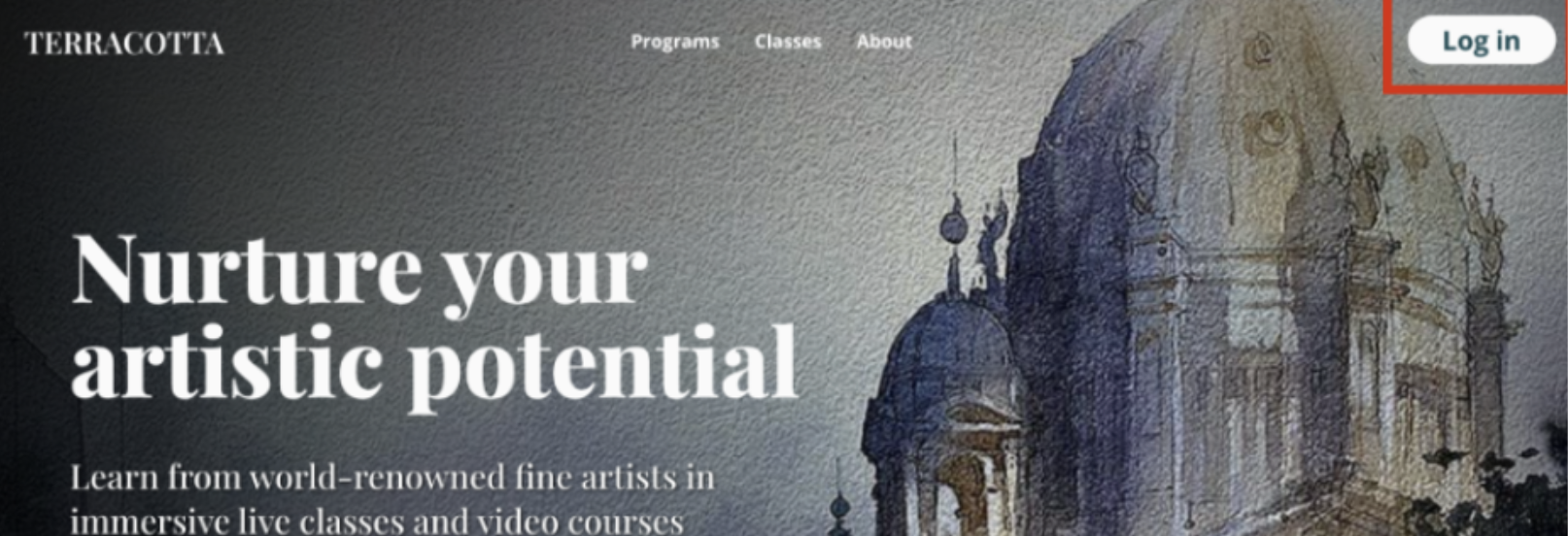
1. Log In to your Terracotta Account at www.terracotta.art by clicking the Log In button at the top right hand corner of the homepage. If you do not see a Log In button, that means you are already logged in to your account.
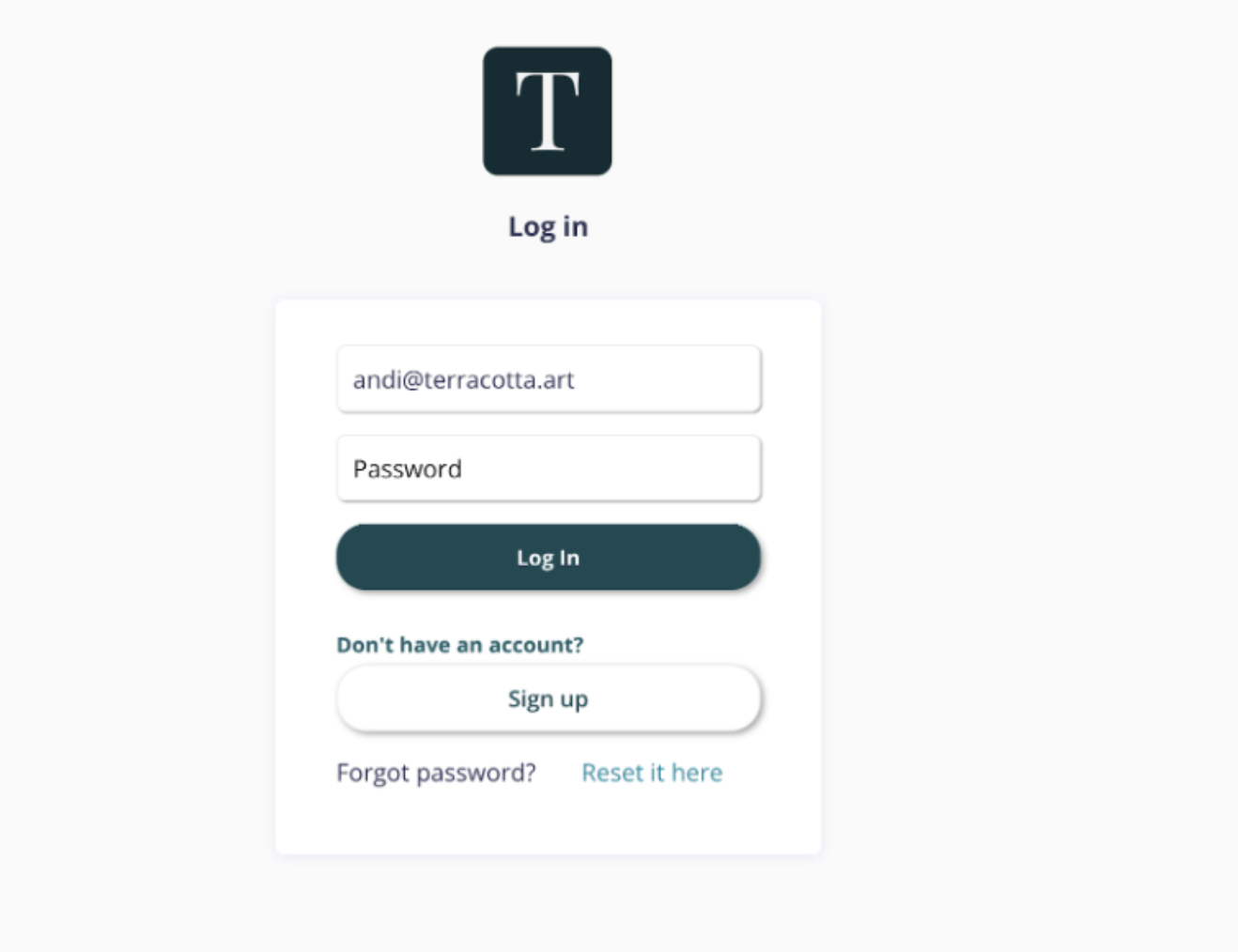
(If you need help resetting your password, you can learn how to do that here: Accessing Your Terracotta Account)
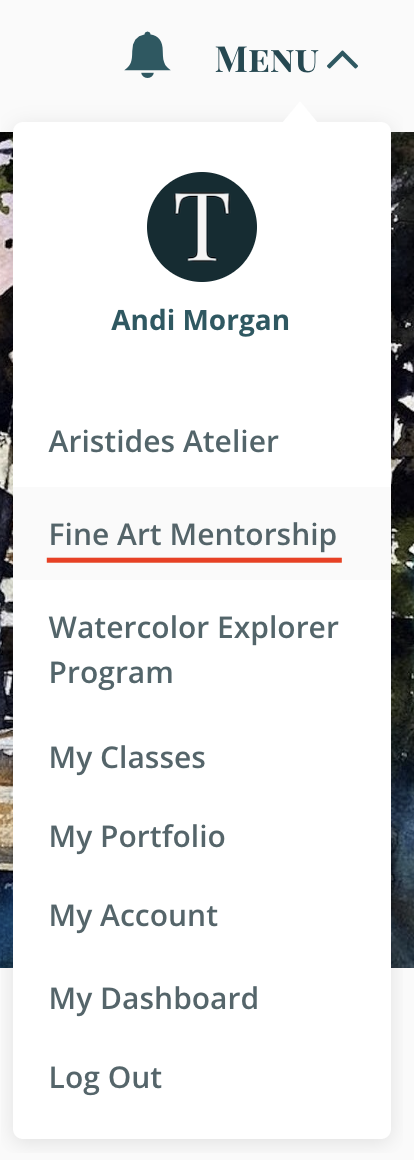
2. On the homepage, you will see a Menu button. Click this button to show a drop down list. Select Fine Art Mentorship to enter the Virtual Studio. All class information, lessons, and resources are housed in the virtual studio.
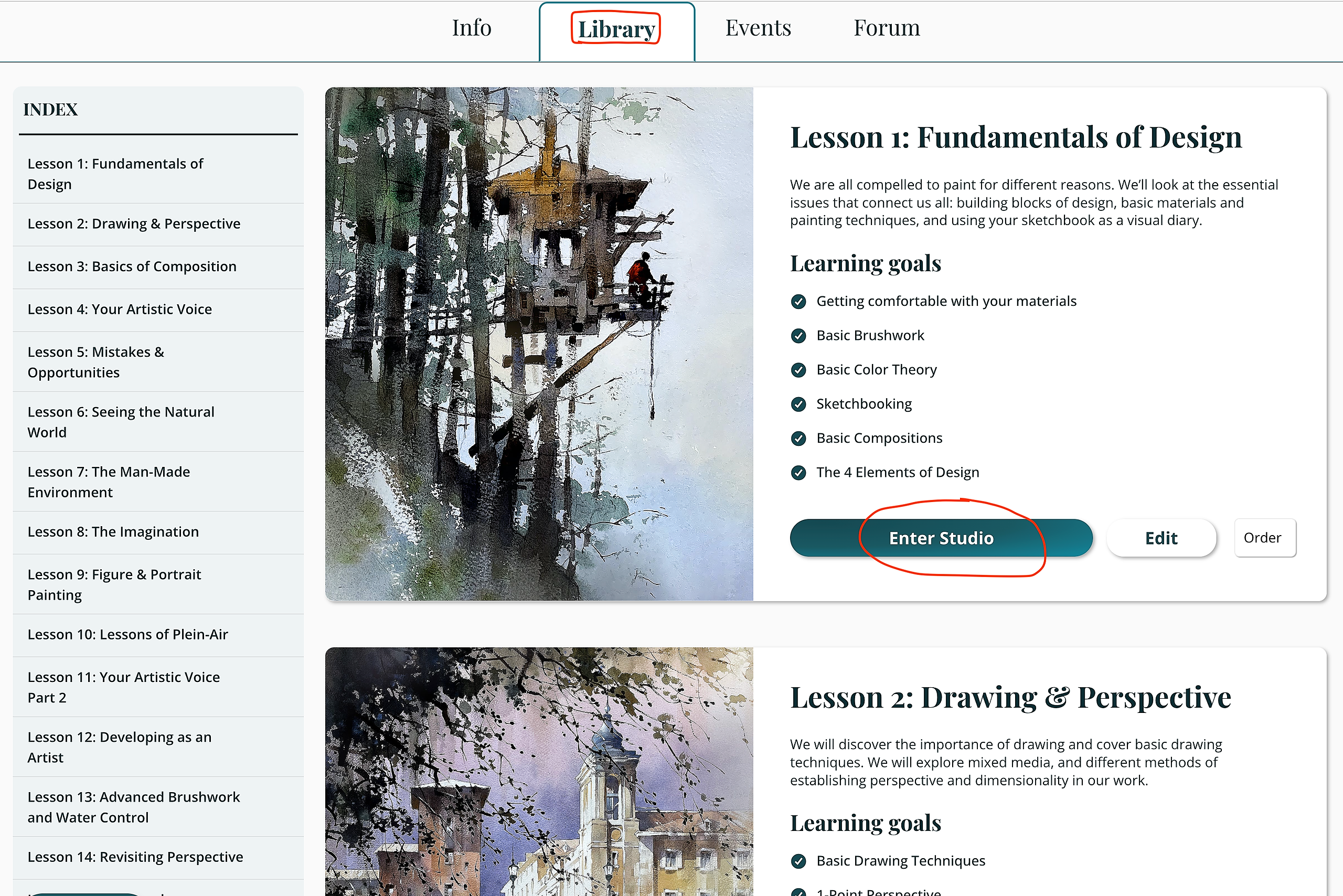
3. Once inside the Fine Art Mentorship, you can find all course lessons under the Library tab. Select Enter Studio for the desired lesson.
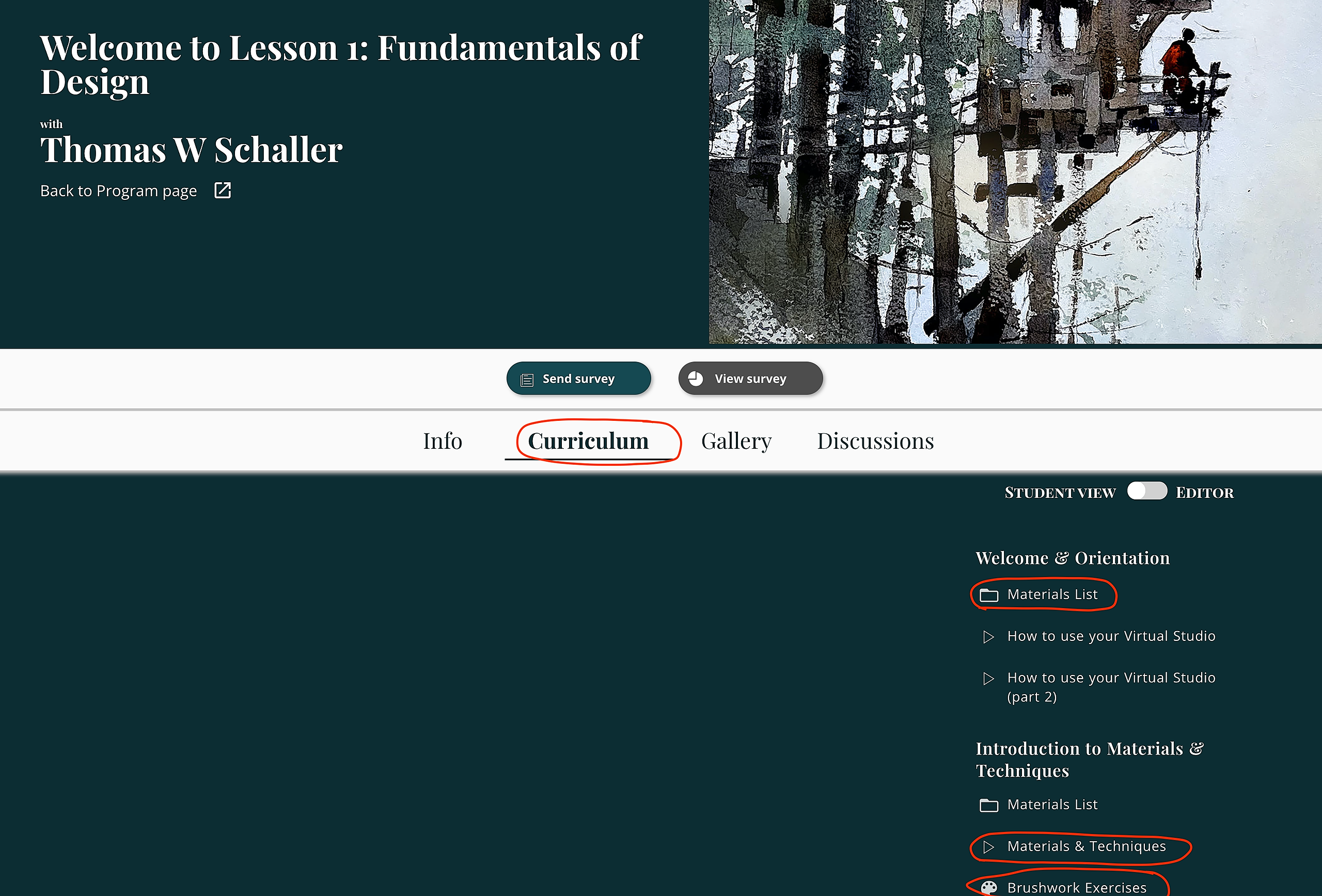
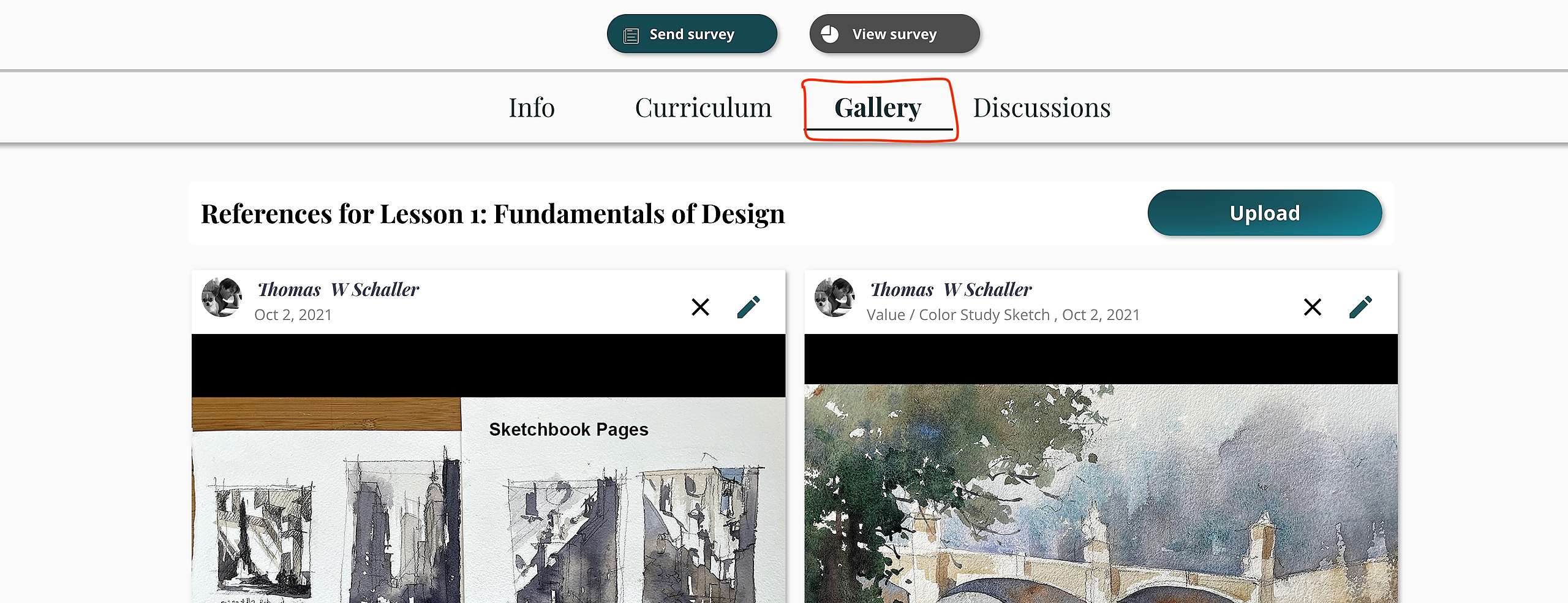
4. You will then be redirected to the lesson studio. Click the Curriculum tab to find all the videos for that lesson, as well as any assignments, reference images, and materials lists.
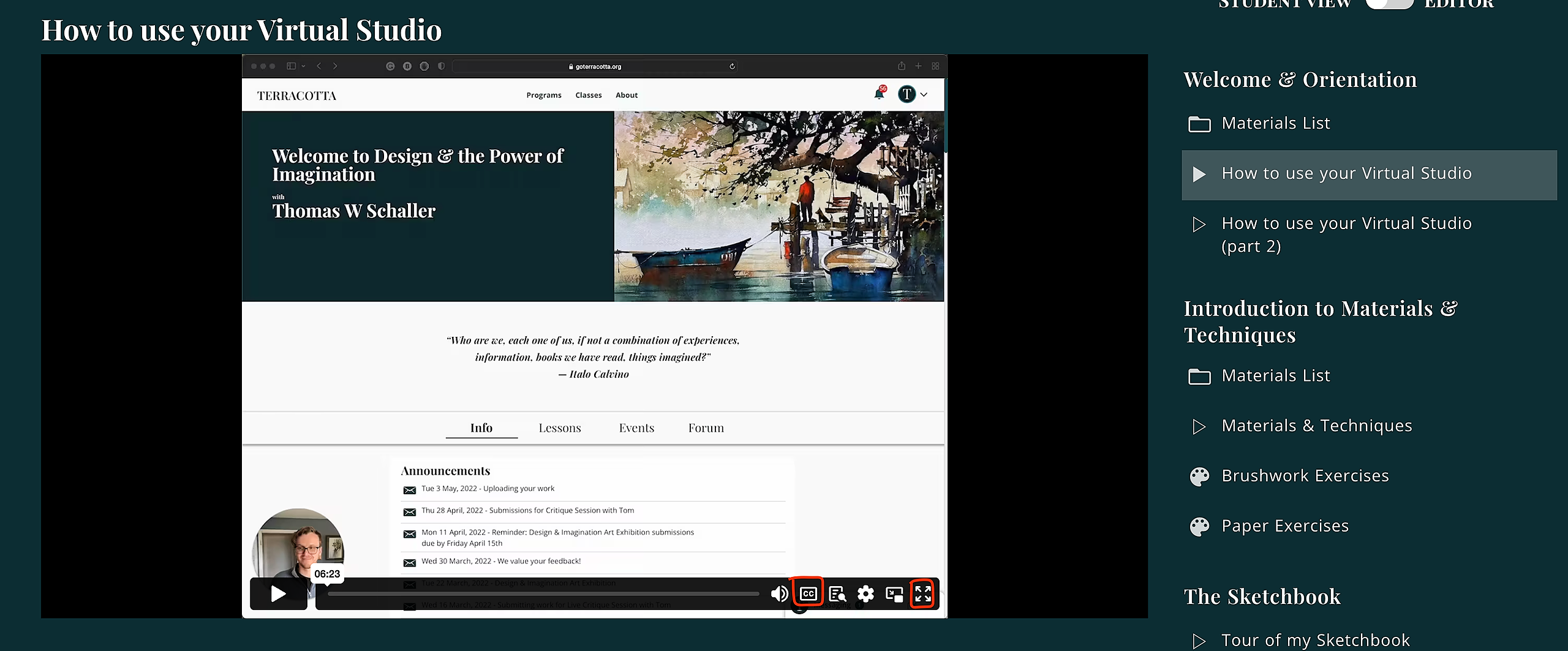
You can click through each video, starting and stopping as often as you like. You can also choose to turn on Closed Captions or expand the video to Full Screen.
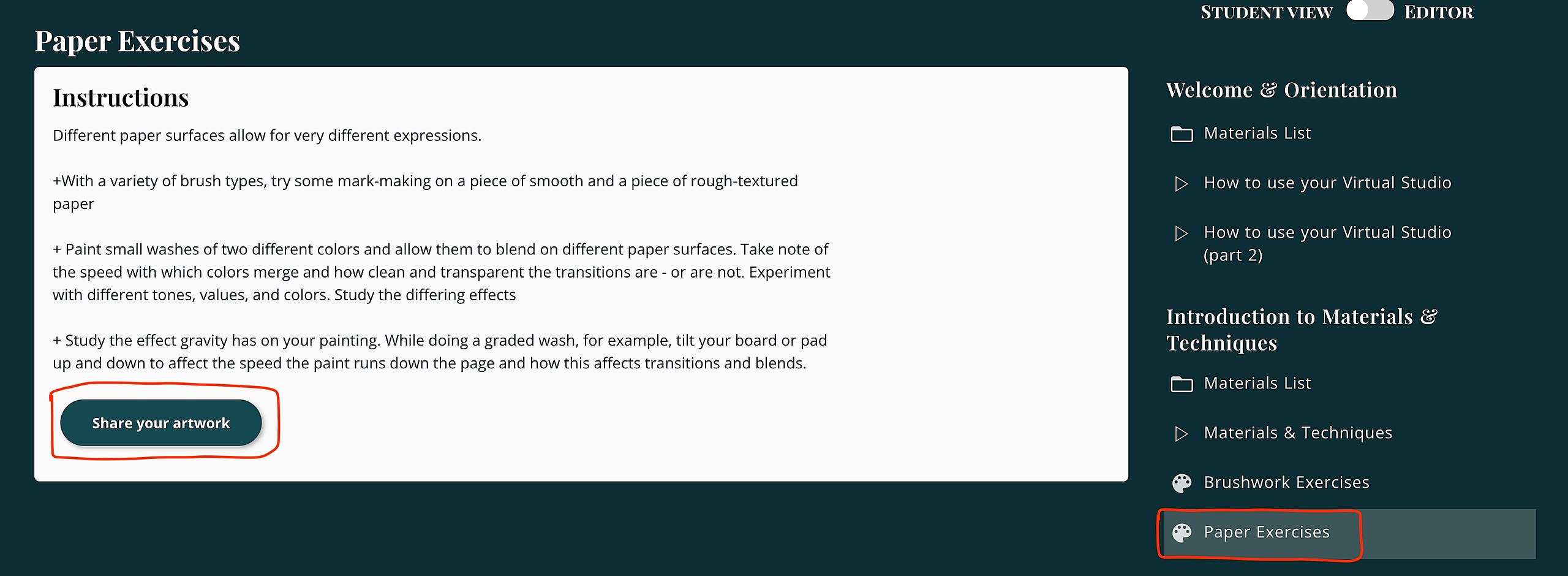
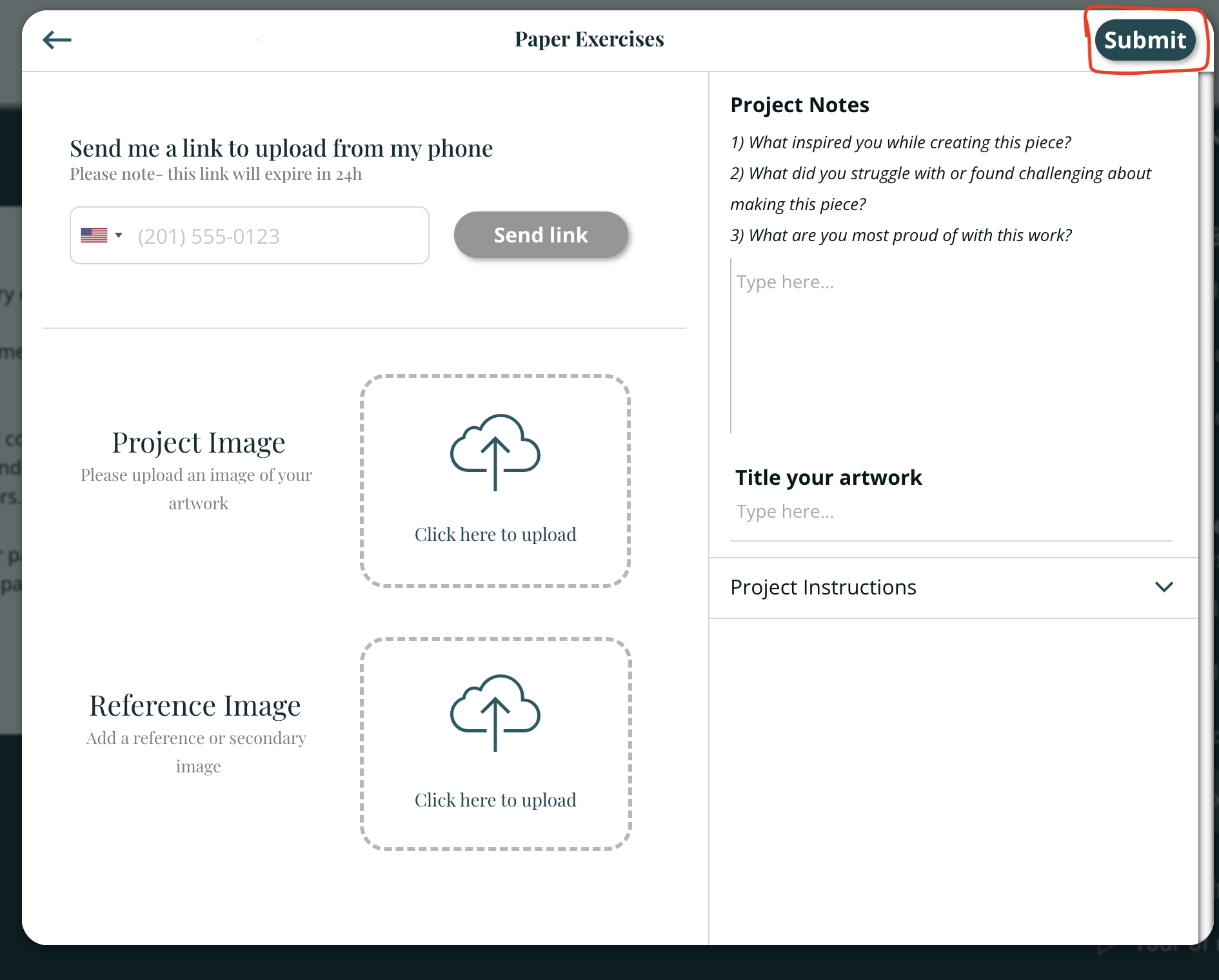
Also inside the Curriculum section you will find Exercises and Assignments, for which you can submit your artwork. Click on the Exercise to learn more, and press Share Your Artwork to upload your work. Upload a photo of your artwork from your device, including a title, notes, and a reference image.
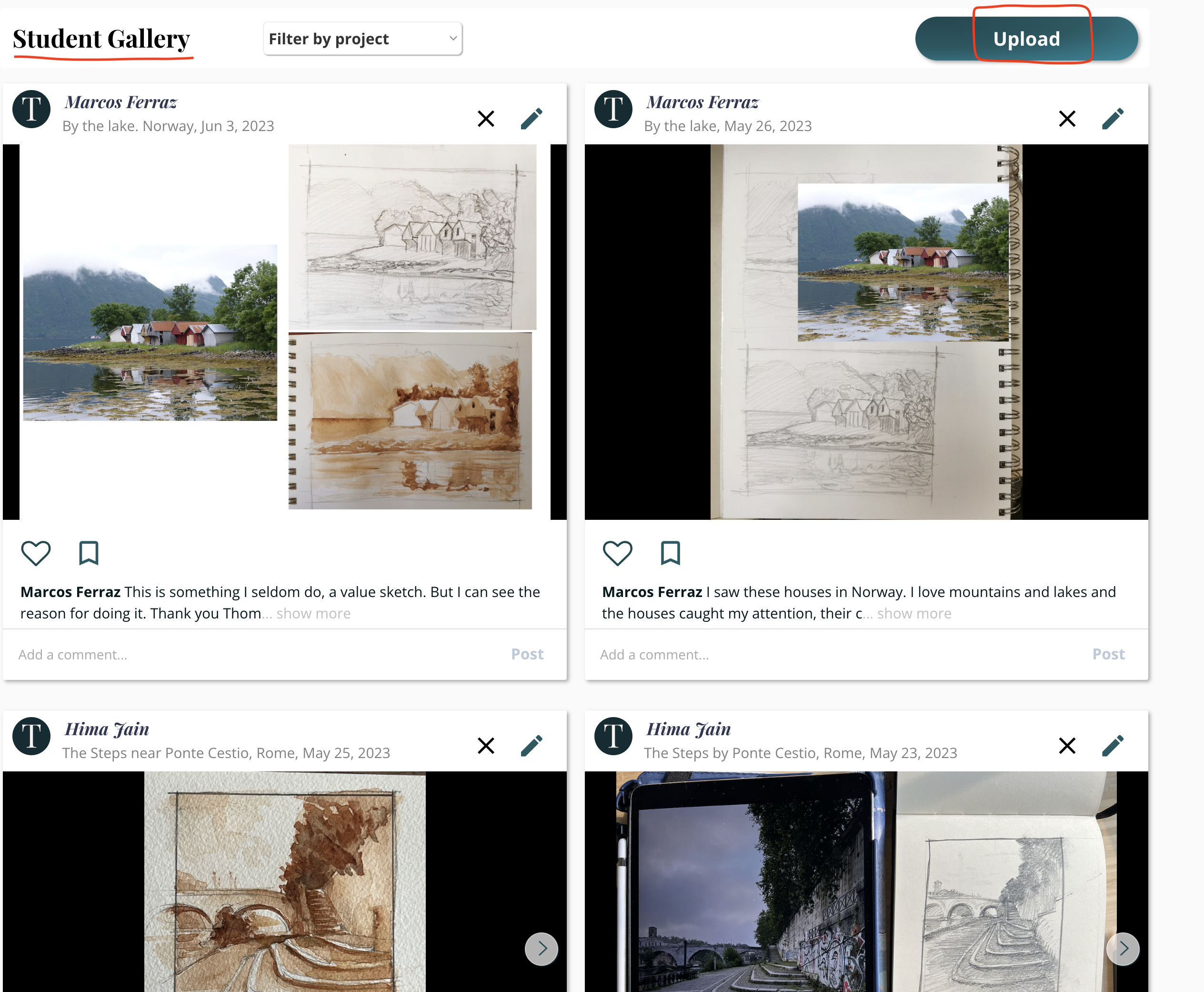
Upon uploading, you will then see your submitted artwork, as well as the submitted artwork by other students in the program, inside the Gallery section. You can also upload work directly into the Student Gallery.
How to access live events
An exciting part of the Fine Art Mentorship are the live sessions with Tom and Guest Artists! You can find all upcoming events by following these steps:
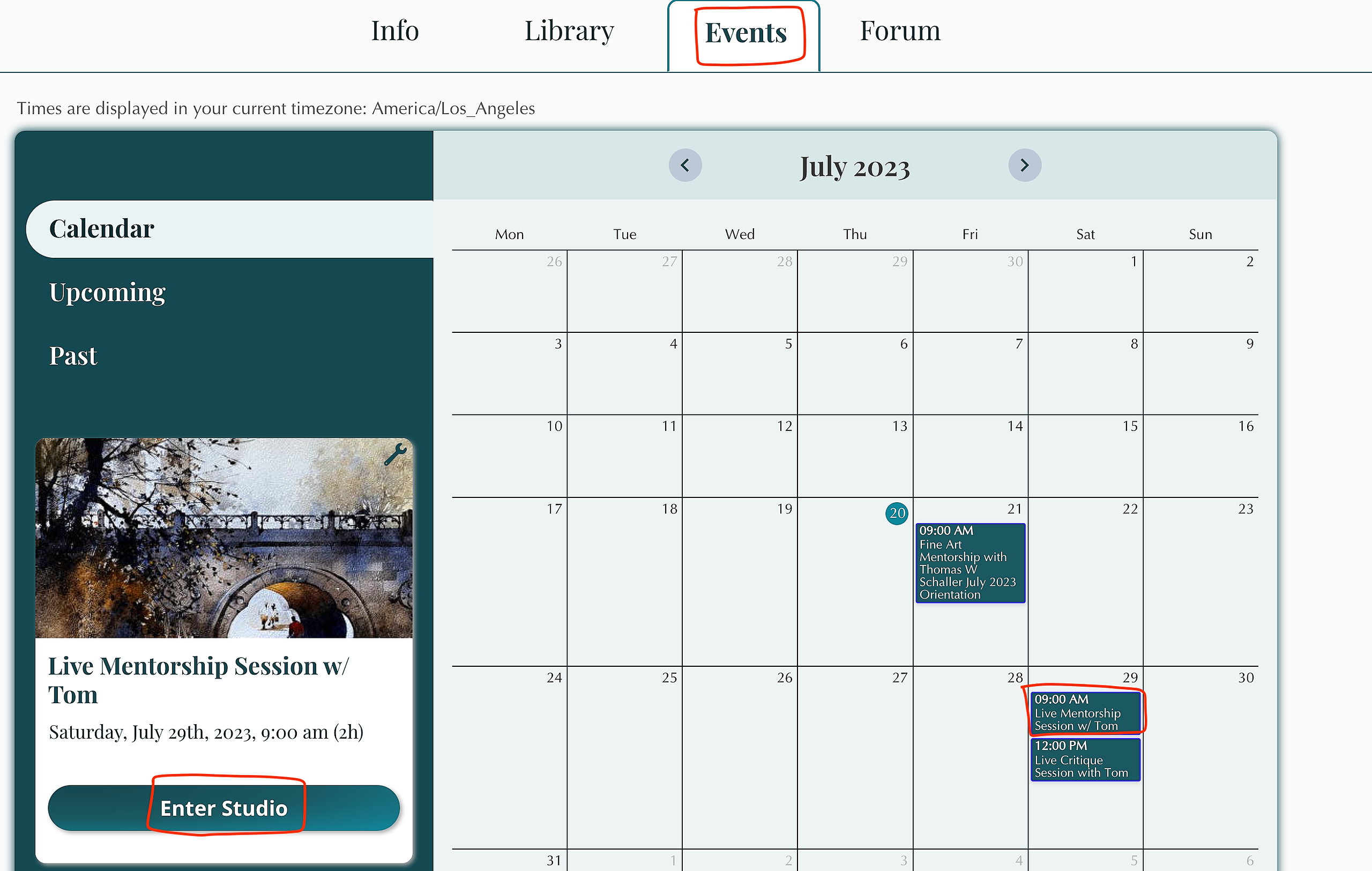
Return to the main Fine Art Mentorship studio (as shown in Steps 2-3 above), and select the Events tab.
You can choose to view the monthly calendar. Click on the scheduled event of your choice, and select Join the Event to be taken to that event’s studio.
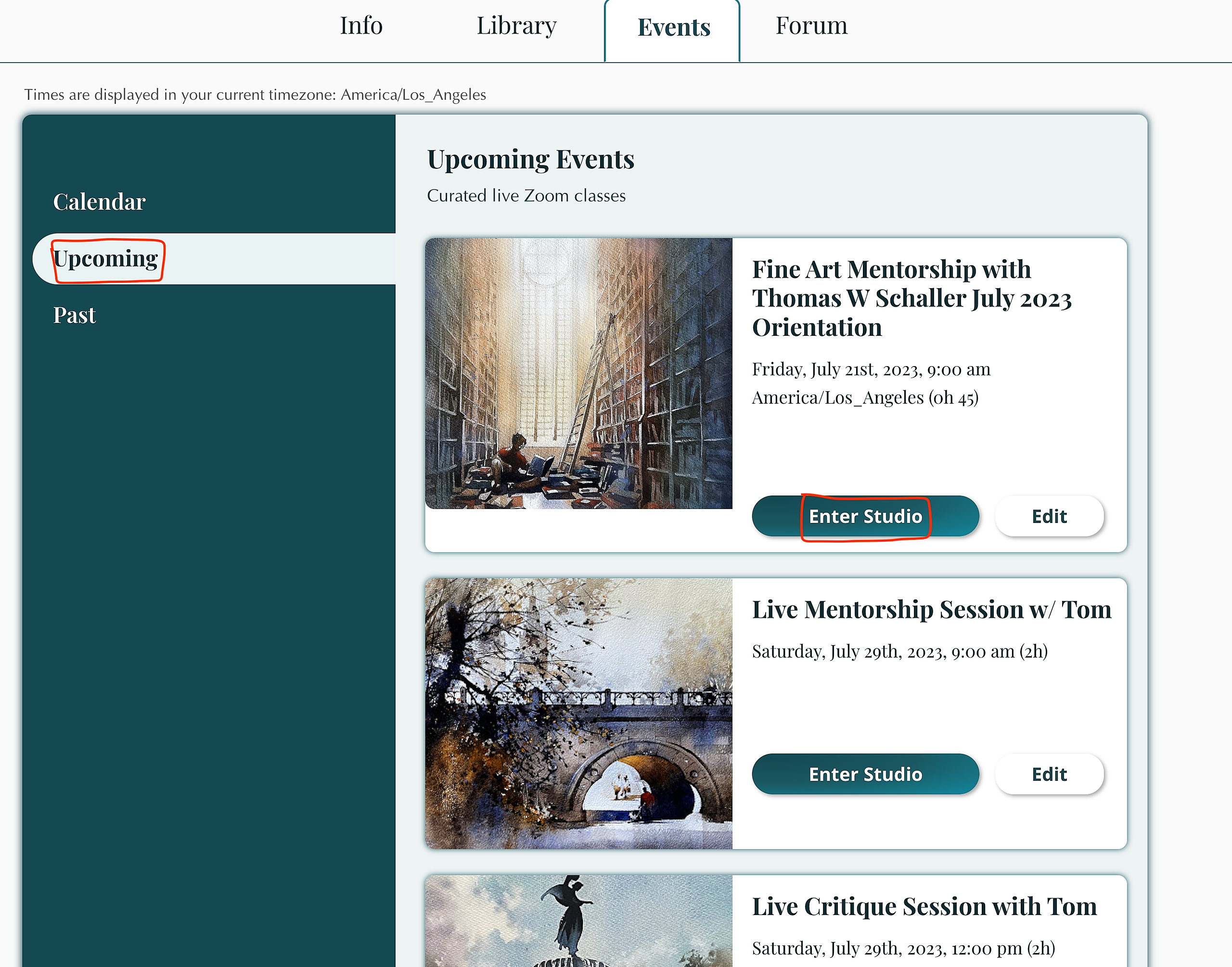
Or view all upcoming events as an ordered list, by clicking the Upcoming tab. Click Join the Event to be taken to the event’s studio. (Note: All timezone's shown will automatically be adjusted to your correct timezone (or the timezone your device is set to)
Once inside the upcoming event’s studio, you will find a Join Via Zoom button which you can use to access the class on the day of the event.
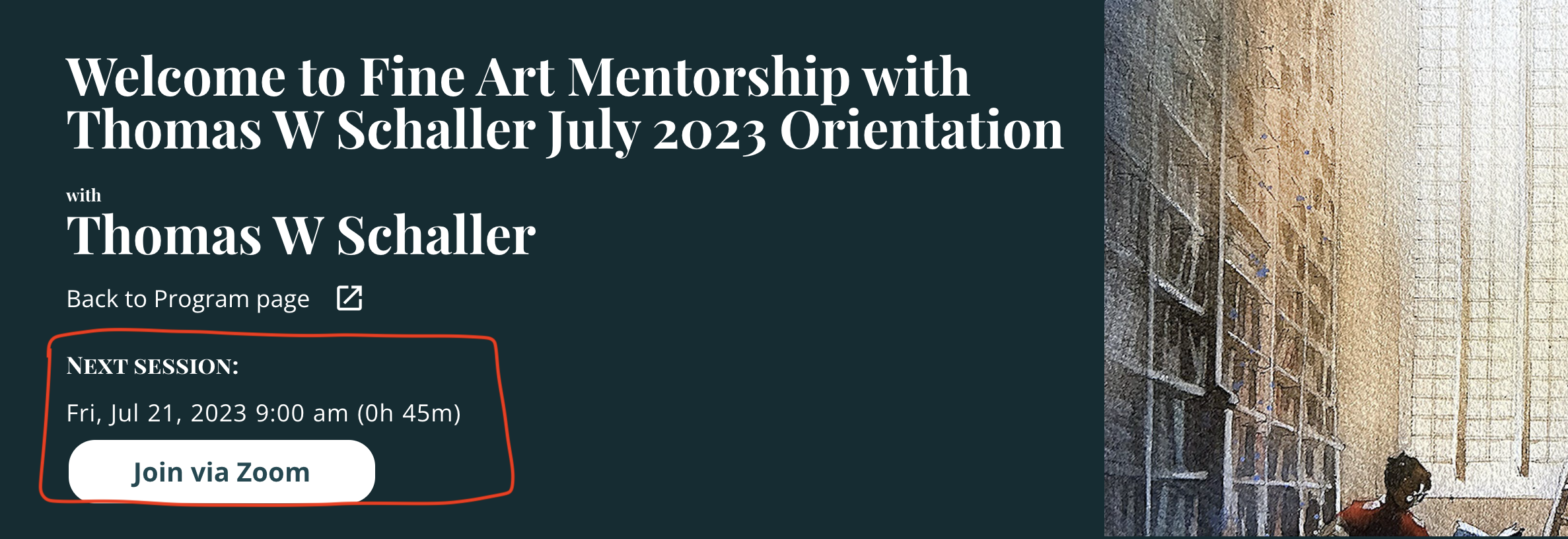
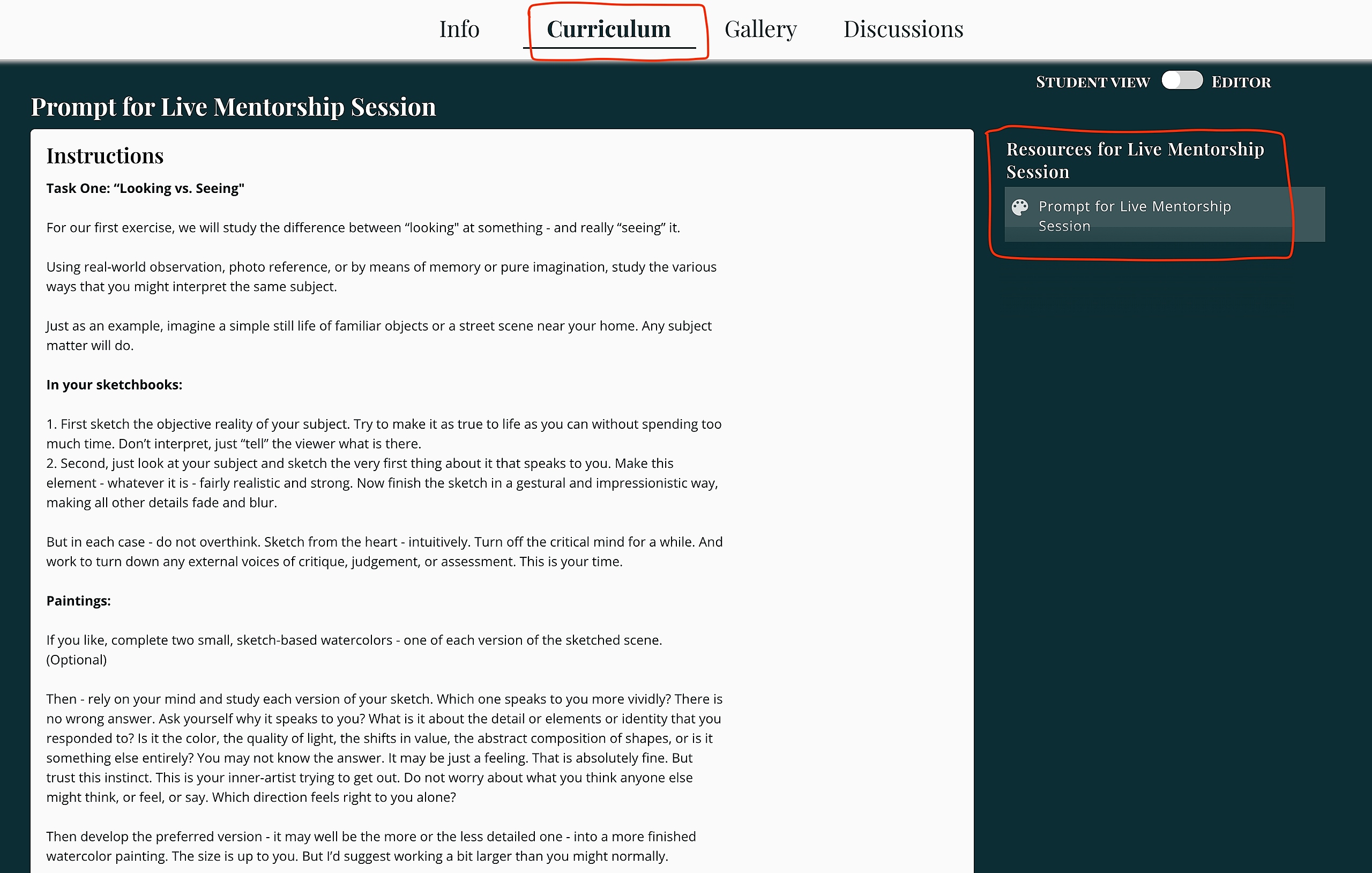
Also inside the live event studio you can find any materials lists, reference images, or submission assignments listed under the Curriculum tab.
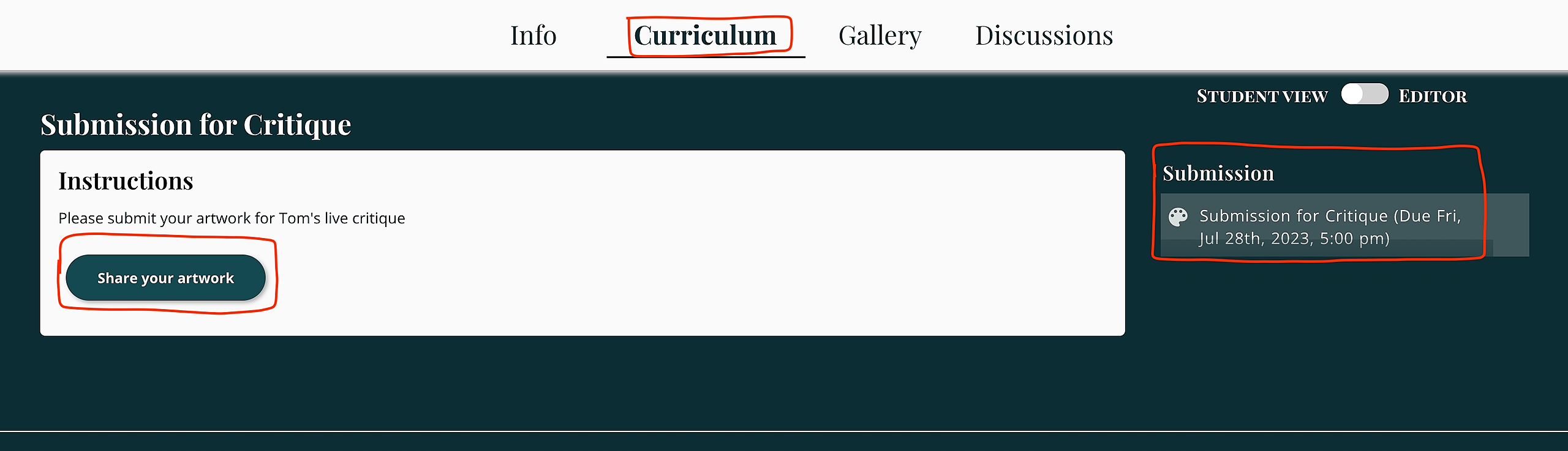
For students enrolled in the Mentorship Plus tier only, you can also submit artwork for the live critique sessions under the Curriculum tab as well. Select the Submission assignment and then Share you artwork.
(Make note of the submission deadline for submitting works for critique. You will no longer be able to submit beyond this date/time)
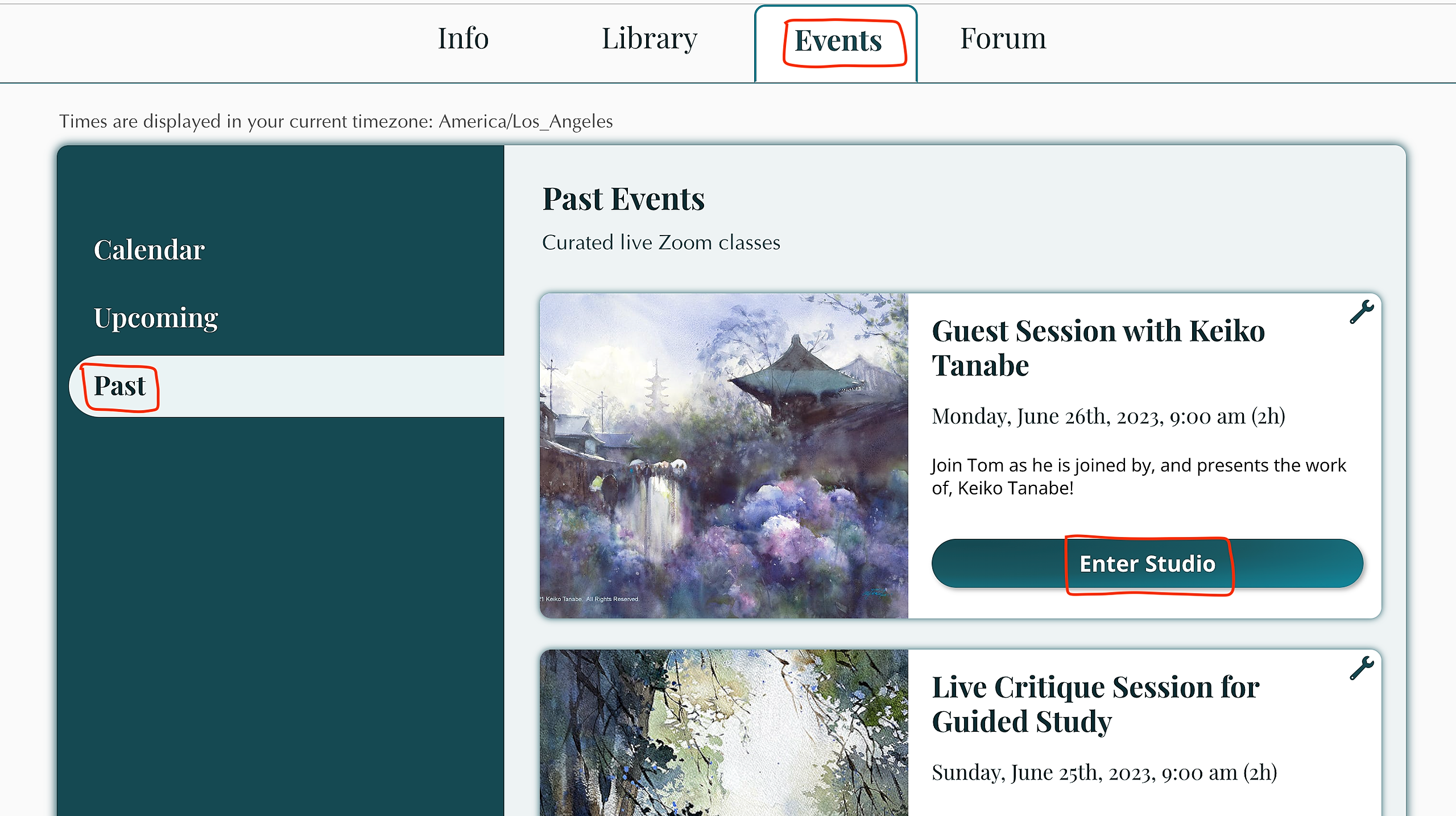
You also have the ability to see past live events, and access the live session recordings, by clicking the Past tab in the Events section. Select Enter Studio to be taken to the past event’s studio, where all video recordings can be found under the Curriculum section.
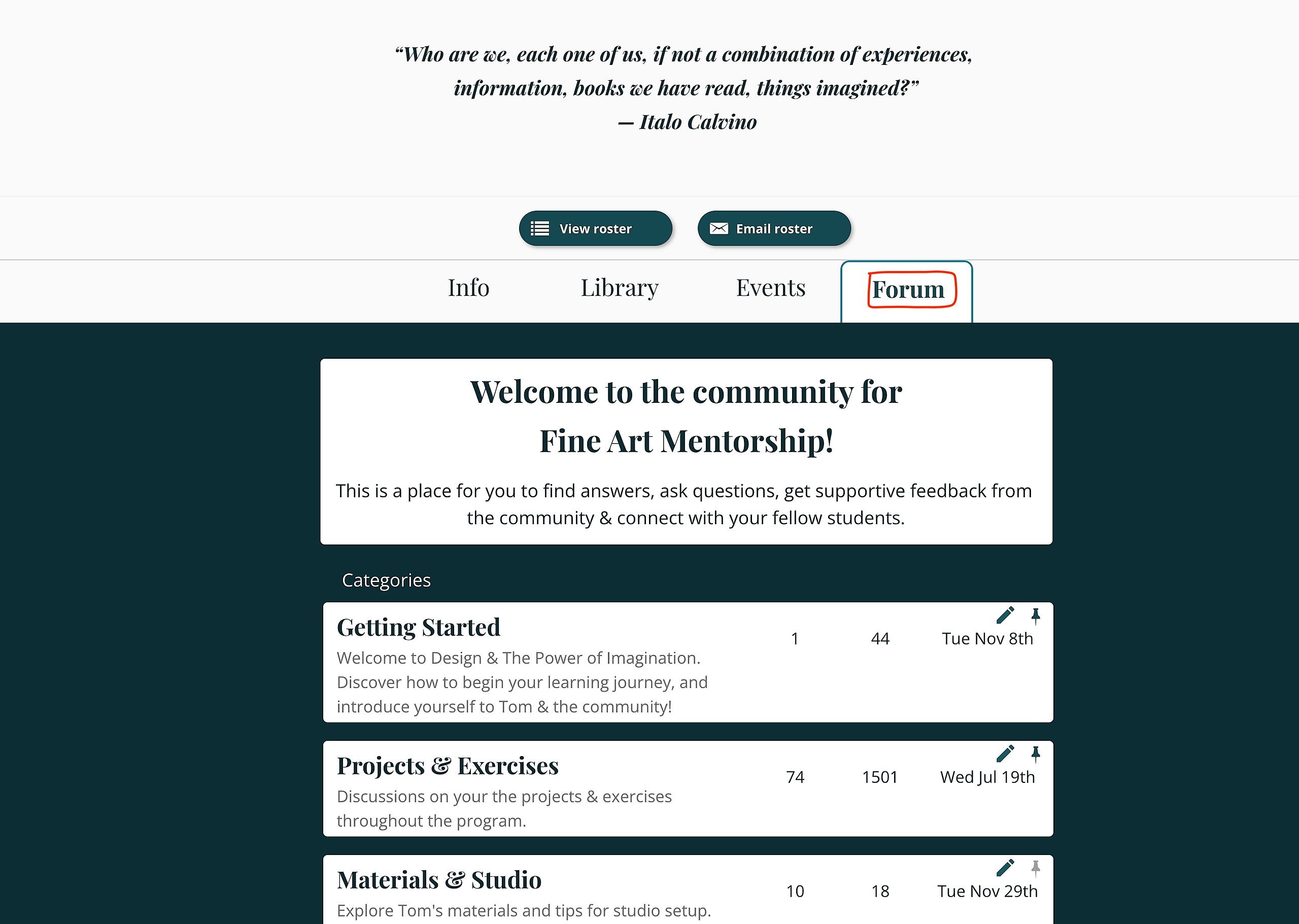
The Fine Art Mentorship also offers a Forum where students and instructors can communicate with one another. To use the forum, go to the main Fine Art Mentorship page and select the Forum tab. Select the desired topic to see comments/questions left by other students as well as submit your own comments/questions.
We hope you enjoy your time in the Fine Art Mentorship with Thomas Schaller! If you need any additional support, feel free to reach out to us at hello@goterracotta.org.
Click here for a video showing you how to navigate the Program